Why a Review History Matters
A readiness status describes one point in time. A review history explains how the team reached that status and whether later changes require another check. This is especially useful when several operators share responsibility for the same presentation.
What to Record at Each Review
Create a dated entry for every meaningful check instead of overwriting the previous result. Keep the information specific enough for another operator to repeat the test.
- Asset identifier, filename, and version or revision.
- Source location and the path used by the presentation.
- Reviewer, date, time, and playback workstation.
- Checks performed: file access, duration, image, audio, and cue placement.
- Result, unresolved issues, next action, and responsible person.
Log Changes That Invalidate a Check
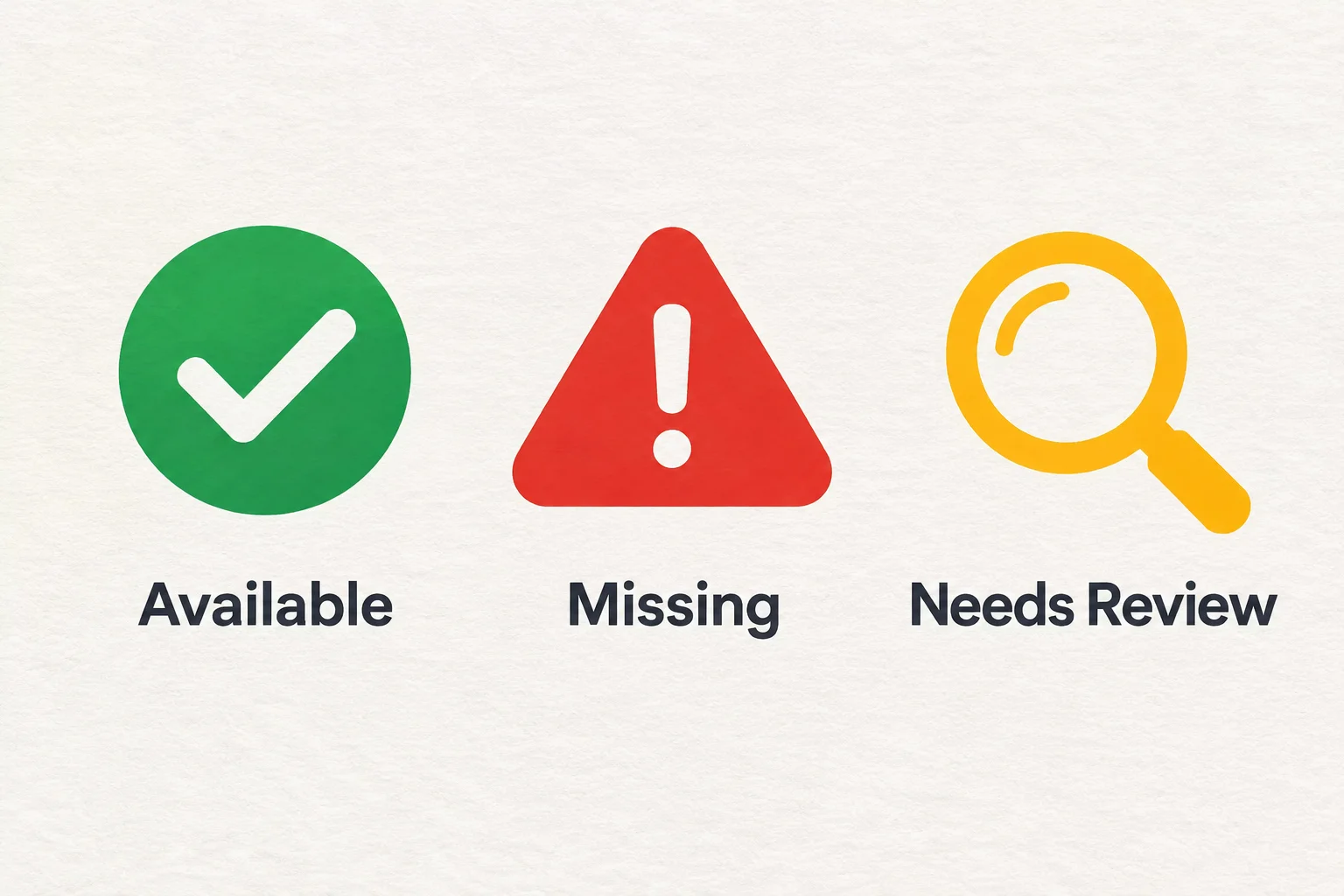
Replacing a video, renaming a folder, moving the project, updating permissions, or changing the playback workstation can invalidate a previous pass. Add a new entry, retain the old record, and return the current status to Needs Review until the relevant checks are repeated.
Use the History During Handover
Before rehearsal, share the latest verified version and any open issues with the incoming operator. Distinguish completed playback checks from assumptions. If an asset remains unavailable, record the agreed fallback and who approved it.
Keep an Example Entry Readable
Opening video — revision 3: checked on the show workstation; source readable; full playback and stereo output verified. A subsequent file replacement requires a fresh review before the status can remain Available.