
THE MEDIA READINESS LIBRARY

Missing Media

Trace unavailable sources, check the limits of automatic searches, and decide when the original file or a verified replacement is needed.

Recognize & Diagnose

3 practical guides

Why Media Files Go Missing

Media files do not vanish on their own—they become unavailable when presentation applications lose track of external storage paths. Understanding why source links fail helps production teams prevent offline media emergencies before showtime.

Read the guide
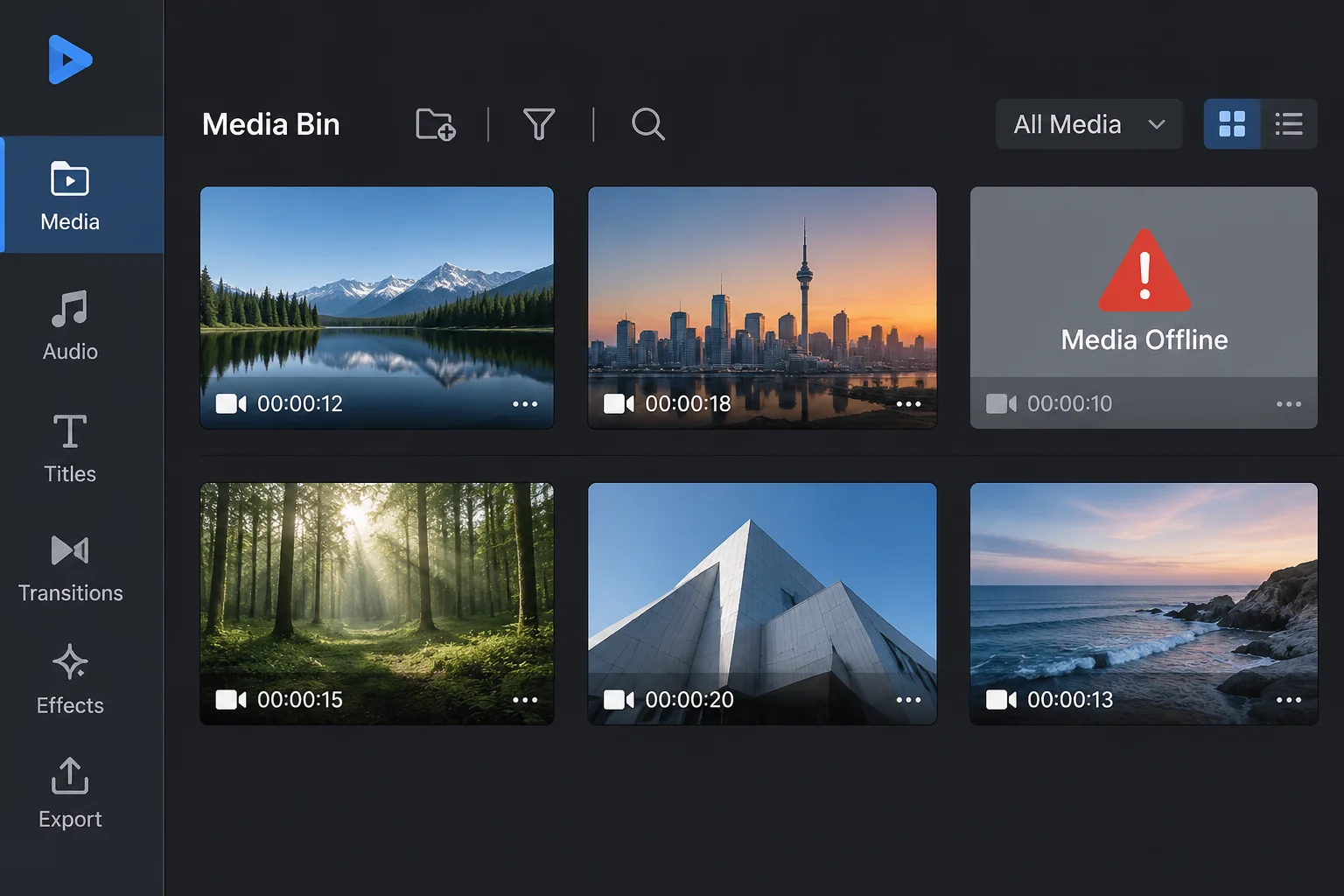

Recognizing a Missing Source

Missing media sources rarely trigger catastrophic application crashes; instead, they present subtle warning flags, muted placeholder icons, and silent fallbacks. Recognizing these symptoms early keeps live presentation environments reliable and prevents embarrassing onstage blankouts.

Read the guide

First Steps When Media Is Unavailable

Encountering a 'Media Offline' warning during a critical production can be stressful. Your primary goal is to isolate whether the issue is a file path disconnect, a network drive issue, or a missing asset. By following a structured recovery process, you can minimize downtime and get your content back on the screen quickly.

Read the guide

Search & Recover

2 practical guides

Search Paths and Their Limits

Automated directory lookups frequently fail when project structures shift during rehearsal or live broadcast setups. Relying solely on recursive software sweeps risks linking erroneous asset revisions or exhausting memory buffers right before curtain call.

Read the guide

When Recovery Requires the Original File

Automated relinking tools and path recalculations fail whenever the source file has been deleted, overwritten, or isolated on an unmounted physical drive. True resolution demands retrieving the exact master container to prevent display collapse during live production.

Read the guide