Visual Discrepancies in the Media Bin
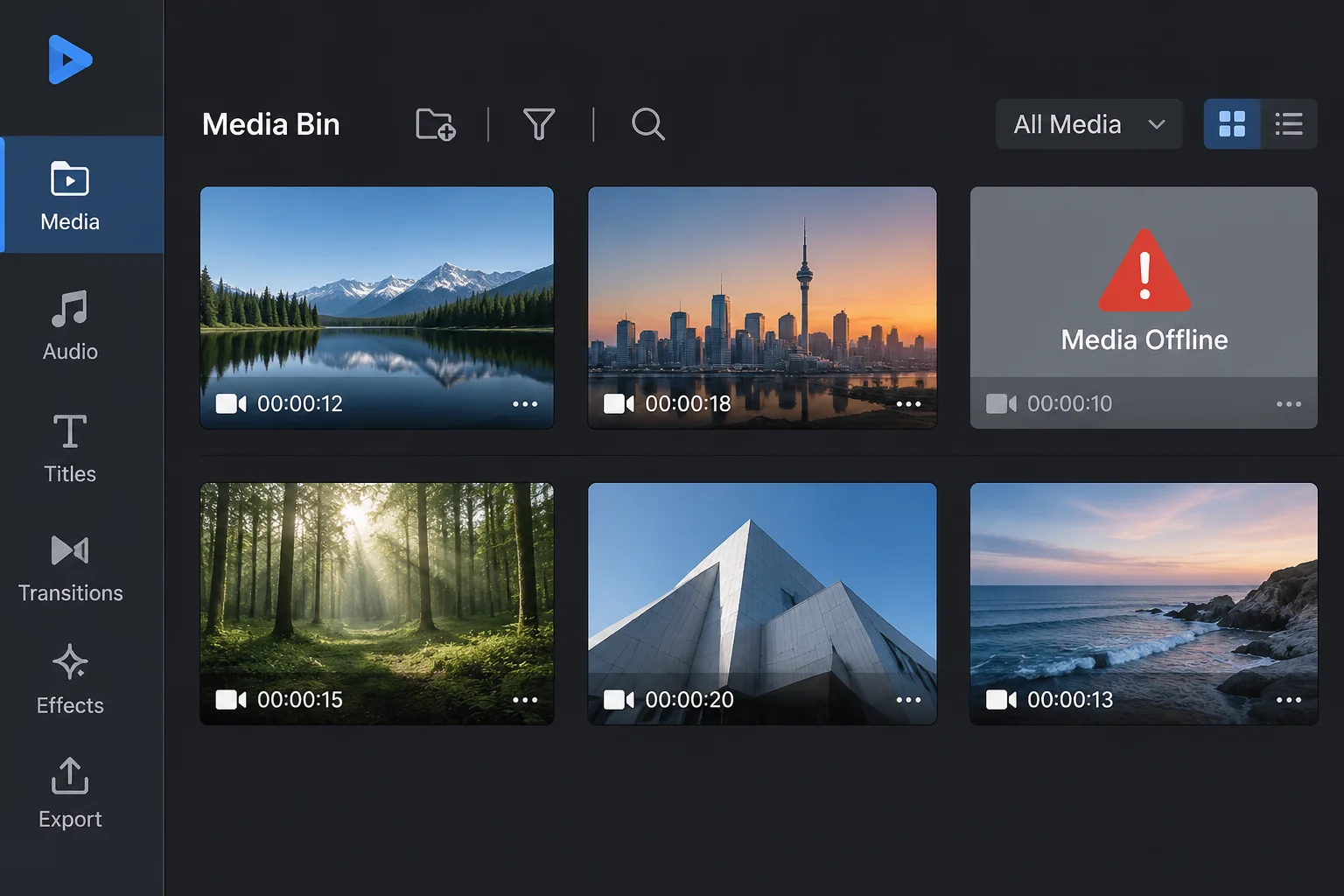
Modern presentation and playout software stores references rather than raw video footage inside the presentation package. When an external file disappears or its mount point changes, the software updates its interface to reflect this disconnection. The most common sign is a bold amber or red exclamation icon pinned to the corner of a media thumbnail. In certain playback environments, the thumbnail turns completely slate grey, accompanied by the explicit warning string Media Offline or File Not Found.
However, operators frequently overlook a deceptive scenario: persistent cached thumbnails. Software often retains a low-resolution cached image from the initial import. To an operator quickly scanning the bin, the graphic looks perfectly intact. The absence of the source only manifests once the playhead triggers the cue, generating an unannounced black screen or rendering an empty foreground layer across active stage projectors.
Inspector Clues and Path Readouts
Opening the file inspector or media properties window provides definitive confirmation. A healthy asset reference displays full metadata, including codec specifications, duration, frame rates, and an active file size. When the underlying source is unreachable, these diagnostic parameters either vanish completely or report zero values.
-
Red or Strikethrough File Paths: Software suites highlight broken disk directories in bright red text or apply strikethrough styling to the target URI, showing that the system attempted to poll the path and encountered a null response.
-
Zeroed Duration and Framing Data: While static titles might display standard properties, missing video clips routinely revert to 00:00:00 duration, indicating that the container header cannot be read from storage.
-
Volume Mount Disconnects: File paths referencing unmounted external network shares or unplugged portable drives present drive letters or root paths that no longer register within the operating system file manager.
Behavioral Cues During Rehearsal Runs
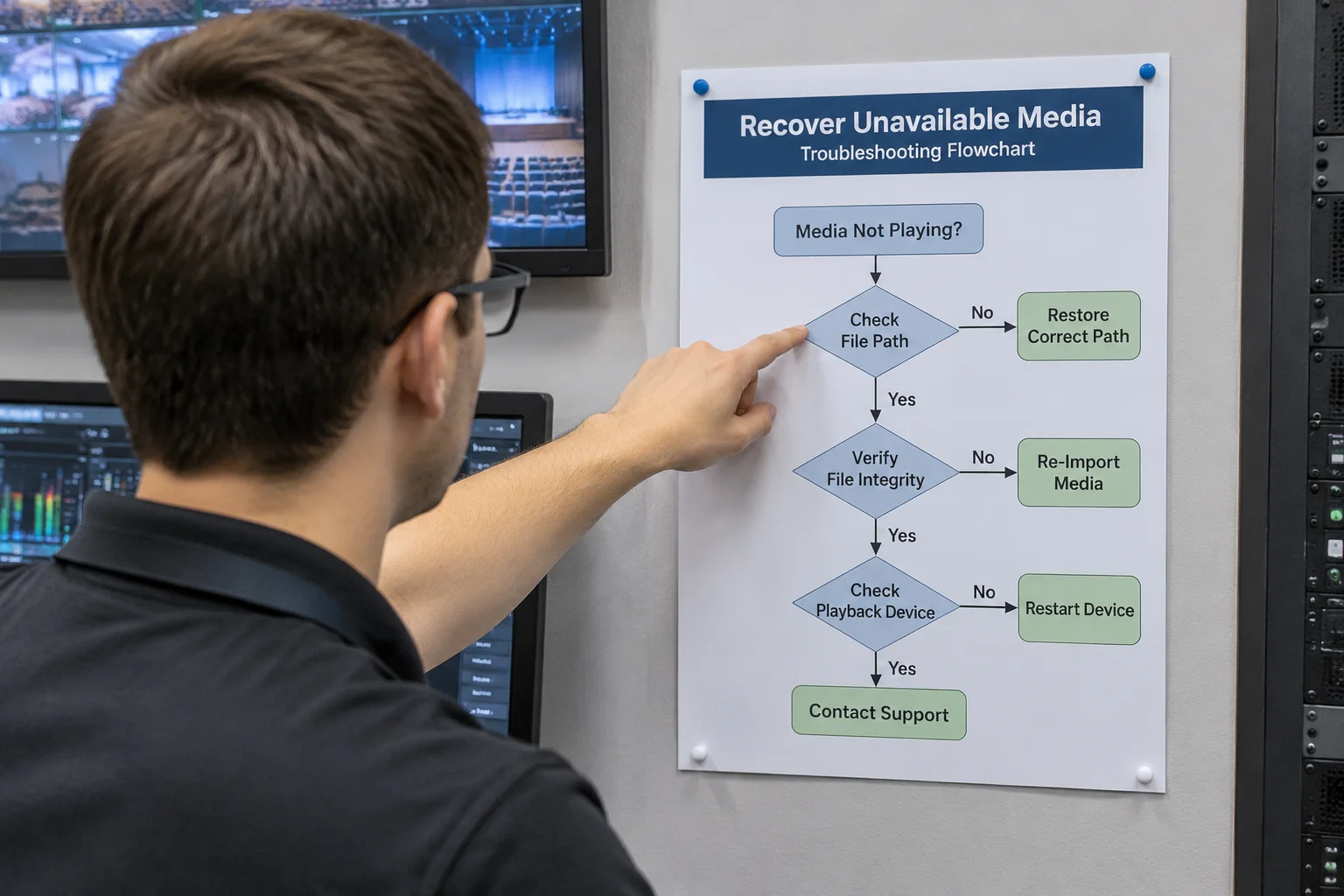
Live playback behavior quickly separates genuine missing media from transient performance hitches. When a slide or clip with an absent file is triggered, professional playback tools react in one of four distinct ways:
- Silent Pass-Through: The cue fires instantly, but the video layer outputs absolute transparency, leaving background stage lighting or slide text floating over darkness.
- Immediate Freeze on Prior Frame: The engine retains the final decoded buffer of the previous asset to prevent a flash of black, creating a freeze effect that masks the underlying fault.
- Error Banner Interrupts: Playout halts while a modal dialogue requests user intervention to locate the missing resource, locking up operator control during time-critical sequences.
- Partial Stream Playback: Audio components embedded in the project library may trigger normally while the companion video file remains entirely missing due to separate asset routing.
"Never rely solely on visual bin icons to confirm readiness. The true indicator is whether the playback engine can poll the asset header and populate verified file dimensions in the inspector panel."
Pre-Flight Verification Protocol
Diagnosing offline media before doors open requires a disciplined audit sequence. Technicians should run an automated media audit within the host software, systematically inspect referenced volumes, and confirm that all media bins register a clean green or connected state across every playlist item.