Immediate Troubleshooting Actions
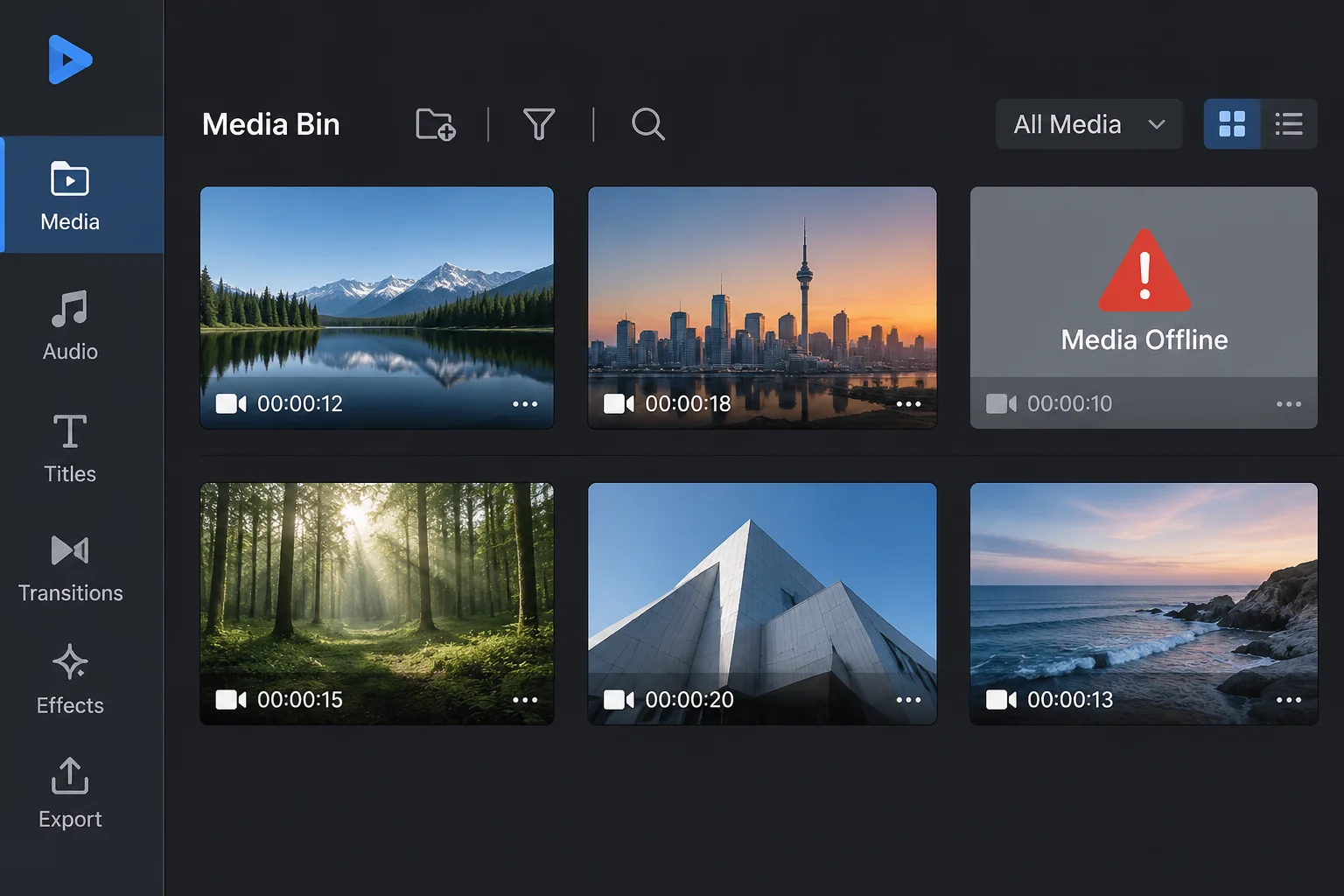
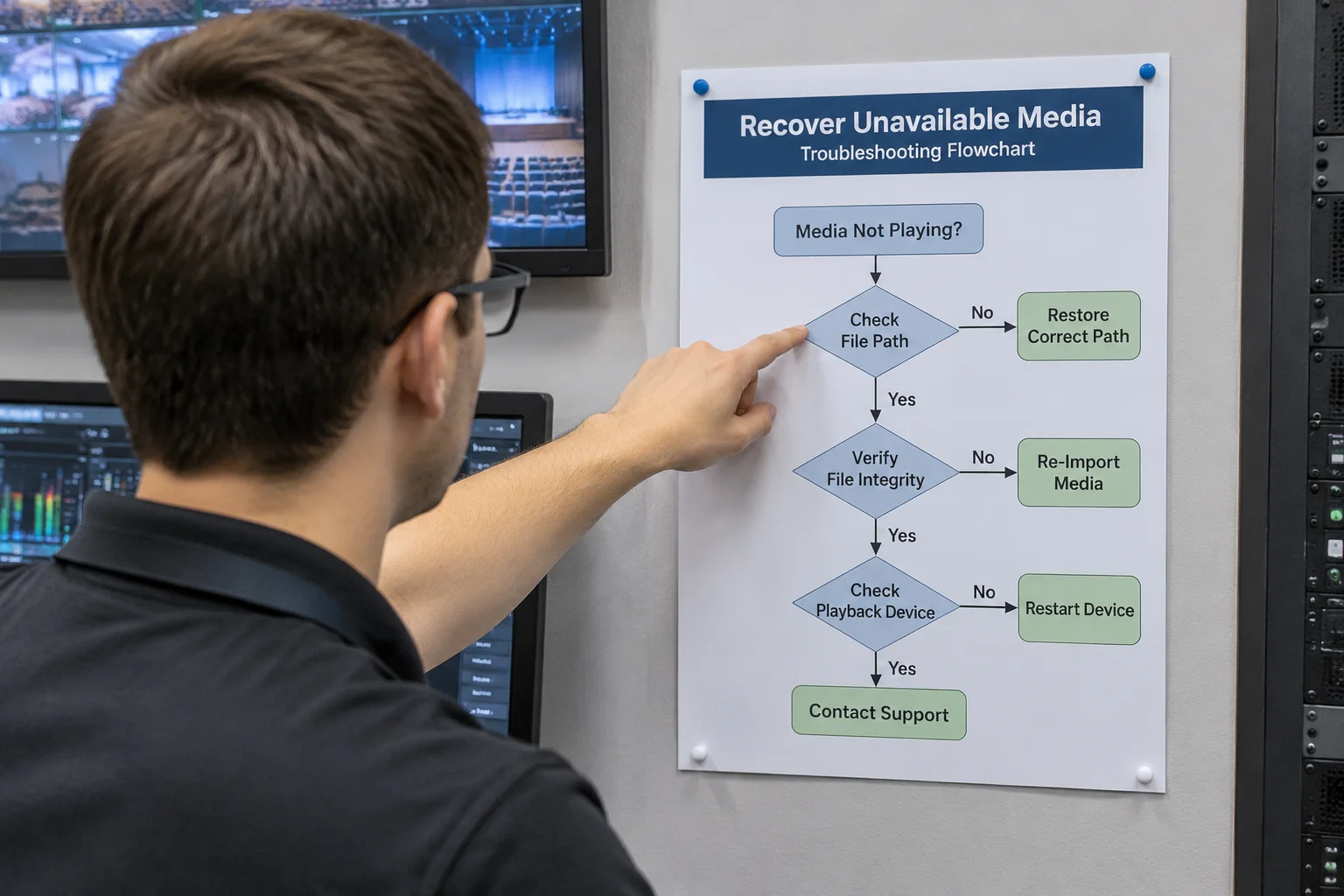
When media files turn red or show as offline, the first step is to avoid panic. Start by determining if the error is isolated to a single file or affects a whole bin. Check your workstation's connection to any local storage or network servers. Often, a simple network timeout or an improperly mounted drive is the cause, which can be fixed by reconnecting or refreshing the mount point.
Mapping and Reconnecting Files
If the file exists but the system can't find it, the link path is likely broken. Use your software's 'Find Missing Media' function. Point the system to the root folder where your files are stored. By maintaining a logical, consistent folder structure, you allow the software to scan and automatically reconnect multiple files at once, saving significant time during high-pressure events.
When to Resort to Backups
If reconnecting does not work, the original file may have been moved or deleted. This is the moment to verify your external backups. Having a secondary, redundant copy of your media assets on a dedicated external drive is essential for these moments. If a file is truly missing, restore it from your latest backup to the directory expected by your production project.