Understanding Pointer-Based Media Storage
Modern video presentation engines and multimedia applications store project structure and slide timelines separately from heavy media assets. Instead of embedding large video loops or audio tracks directly into a single project file, software records a text-based pointer that references the exact file location on local or network storage.
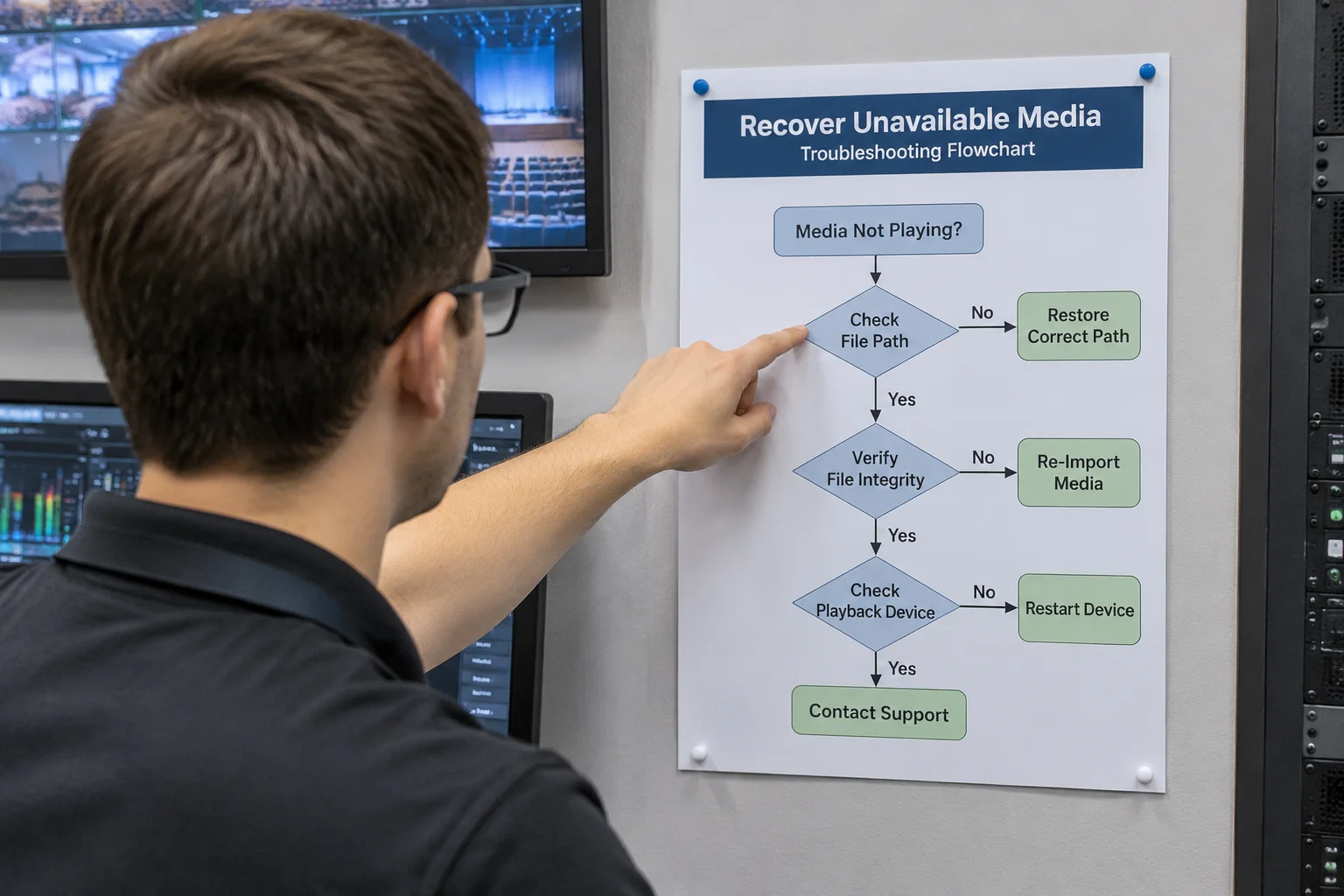
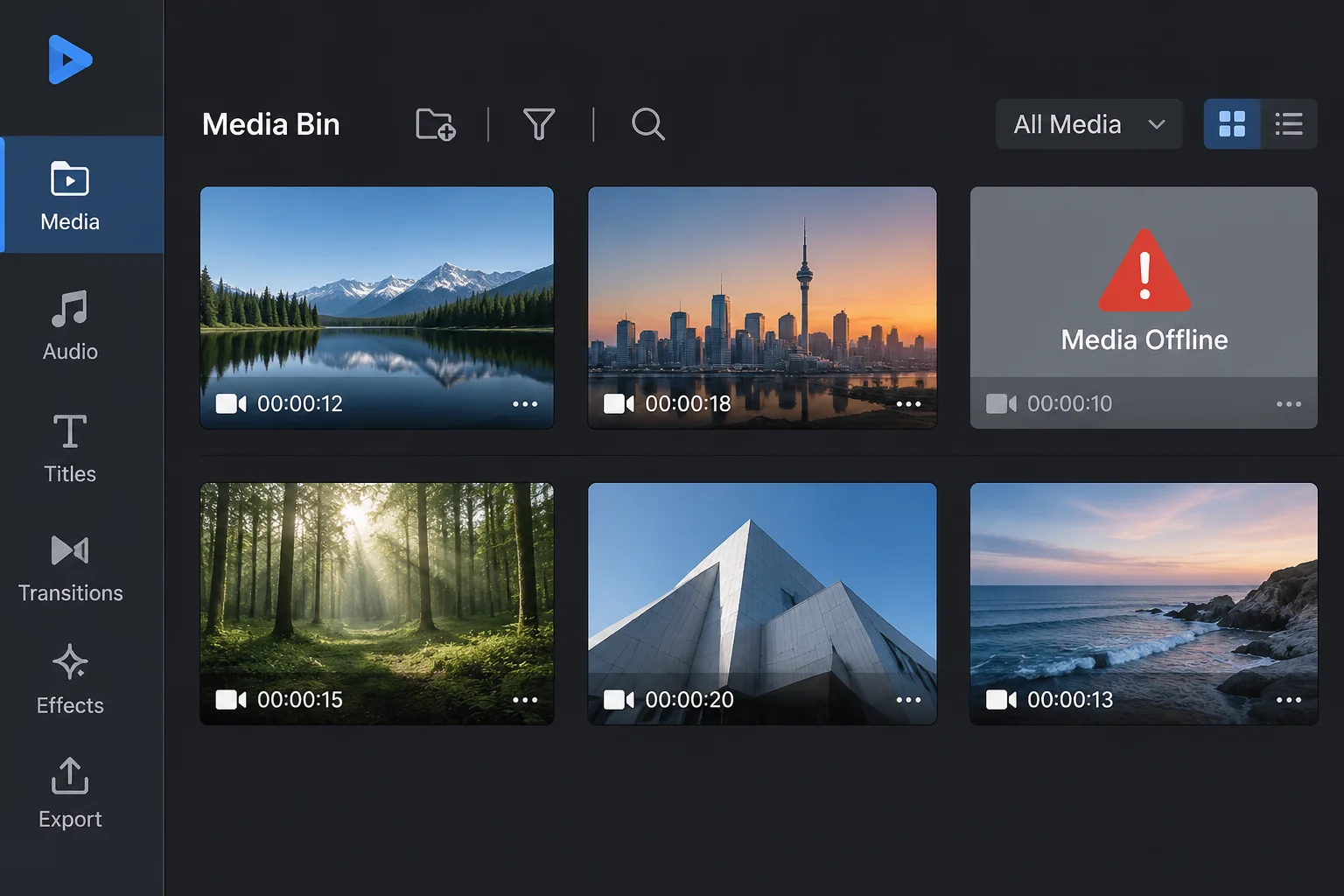
When a presentation slide calls for a background video, the software requests the operating system to open the target file path. If the targeted folder structure has changed, or if the drive letter assigned to an external hard drive has shifted, the system returns a file-not-found signal, causing the presentation engine to display a red thumbnail or an offline warning.
Five Common Causes of Disconnected Assets
- 1. Renaming Parent Directories: Changing a folder name from "Event_2026" to "Event_2026_Final" instantly invalidates every absolute file path pointing into that directory.
- 2. Transferring Projects Without Asset Packages: Copying only the project file to a stage computer leaves all media assets behind on the editor's primary workstation.
- 3. External Storage Remounting: Operating systems frequently assign a different drive letter (such as switching E: to F:) when external SSDs are reconnected to secondary USB ports.
- 4. Network Shared Folder Disconnections: Network-attached storage (NAS) shares unmount automatically after idle periods or system sleep cycles, breaking active source references.
- 5. File Name Modifiers: Editing file extensions or altering asset file names directly in the file explorer prevents software automatic search algorithms from matching original filenames.
How Automated Search Paths Function
When media software detects an offline asset, it initiates an automated lookup sequence. The application scans relative subdirectories starting from the current project directory before searching system default folders. If files reside outside these monitored paths, automated repair fails, requiring manual path re-linking or asset re-importing.
Bundling assets into a centralized project root folder before building presentation layouts eliminates over 90% of missing media issues during live events.
Best Practices for Preventing Missing Media
Establish a single dedicated assets directory for every production project before importing any files into presentation decks. Copy all incoming video clips, graphic overlays, and audio tracks into this folder tree prior to linking them. Inspect file paths using asset manager utilities during pre-show checks to verify that every source file resolves cleanly to local storage.