Establishing Your Media Workflow
In high-pressure event environments, assuming that a file exists simply because it was placed in a folder is a common trap. A Media Readiness Register forces your team to confirm the presence and integrity of every asset. Start by listing all required media files against the project schedule. Each row should represent a specific media asset, mapping its filename, current storage location, and verification date.
The Anatomy of a Readiness Register
Your register should be granular enough to distinguish between a file's existence and its availability within your playback software. Key fields to include are:
- Asset Name: The descriptive name of the media file.
- Source Location: Where the original file resides (e.g., Main Drive A).
- Working Path: The specific directory path within your presentation software.
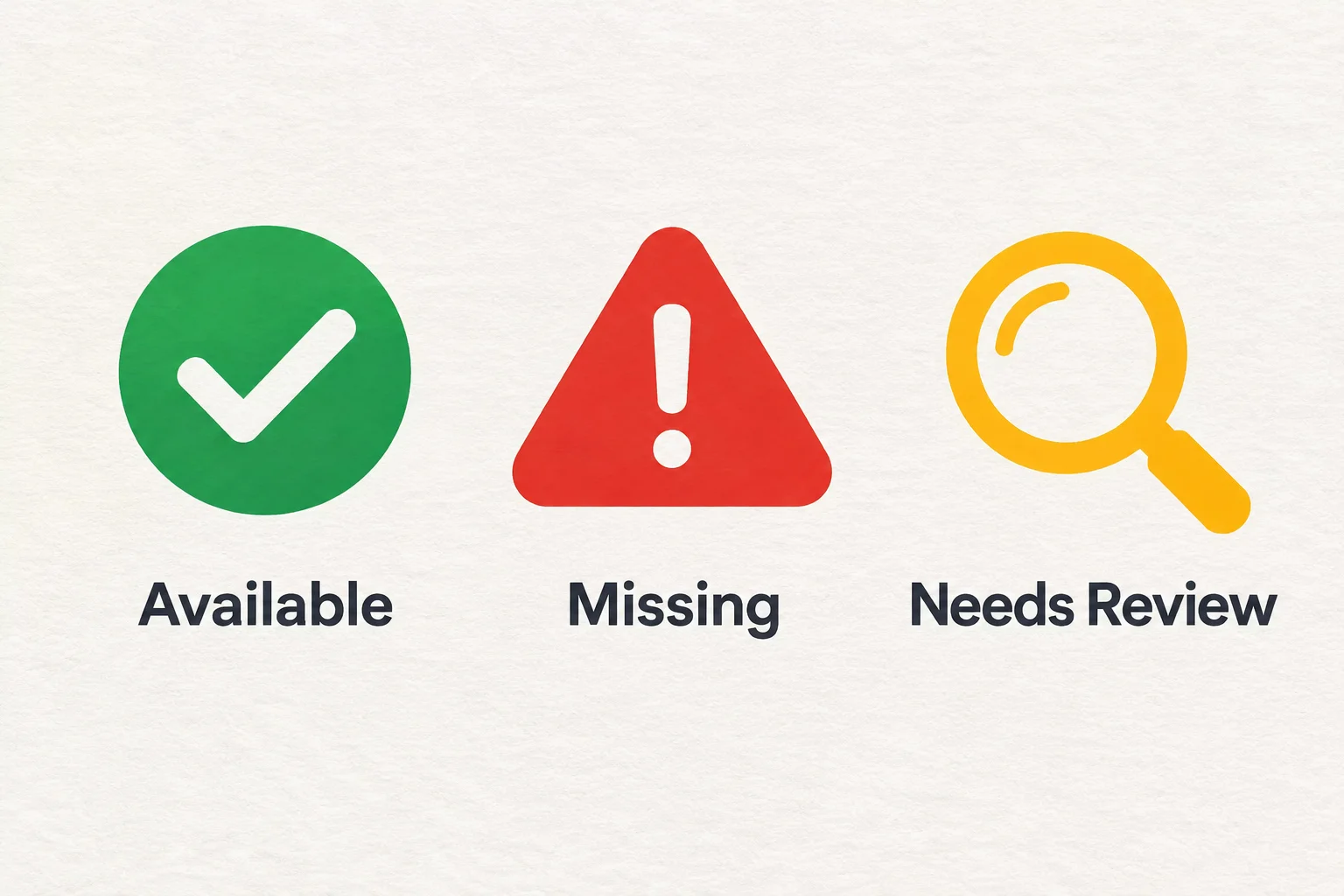
- Status: Use clear categories like 'Verified', 'Needs Update', or 'Missing'.
- Last Checked: The timestamp of the latest manual validation.
By keeping this document updated, you mitigate the risk of last-minute errors. If you need to move assets between workstations or change shared drive permissions, your register will highlight exactly which links require re-mapping.