What Distinguishes Absolute Paths from Relative Paths?
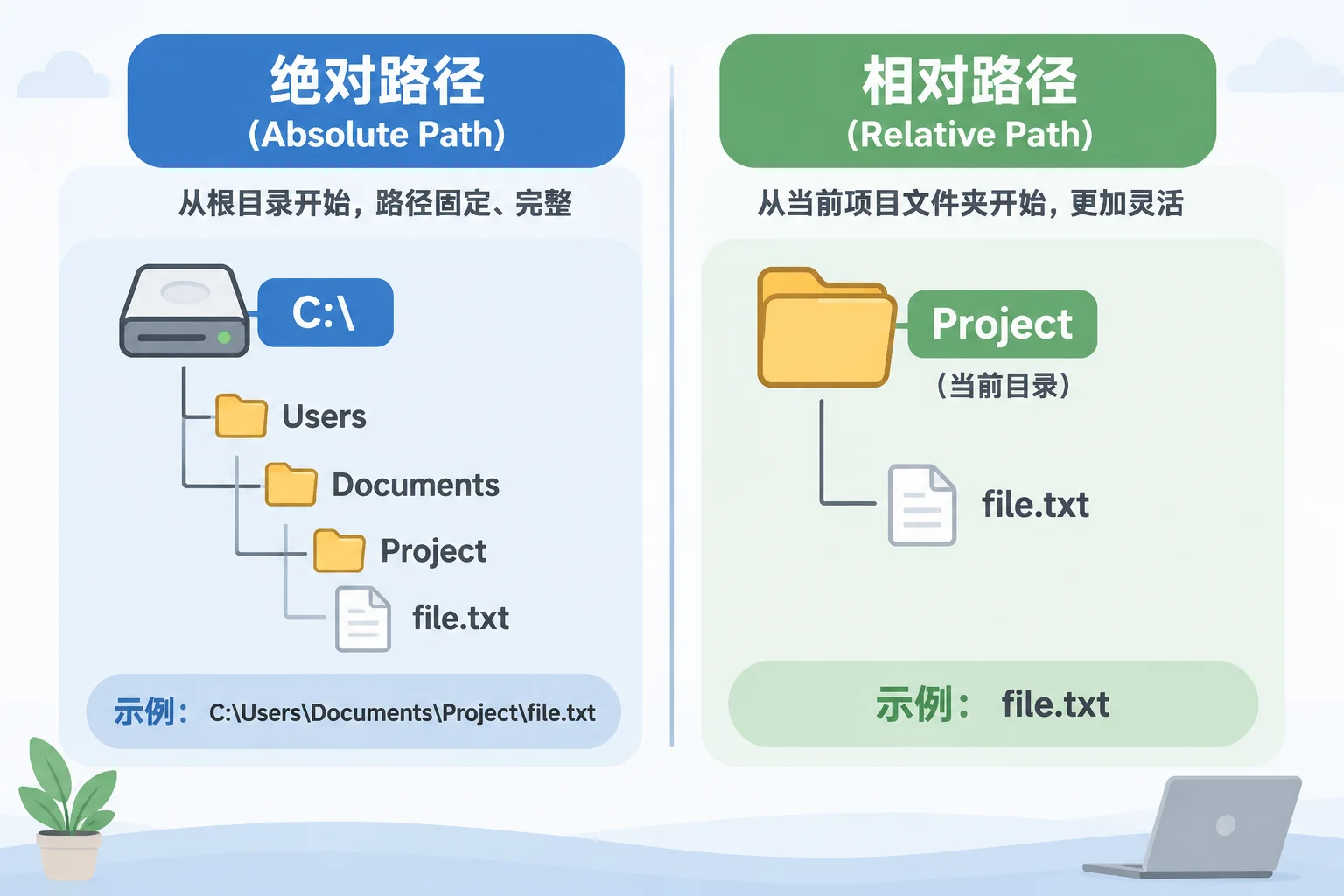
File path references define how software locates media assets stored on disk. An absolute path records the complete file location starting from the system root directory or drive letter. For example, a system might reference a file as C:\Events\2026\Graphics\Intro.mp4. Any modification to the drive letter or top-level directory names instantly breaks this reference.
A relative path specifies an asset location relative to the project file location instead of pointing to the root drive. If your presentation file sits in C:\Events\2026\Project.pro and your video lives inside a subfolder named Media, a relative reference stores only Media/Intro.mp4. Moving the entire parent folder to another machine or external drive keeps every asset link functional because the relative hierarchy remains untouched.
Comparing Path Behaviors in Presentation Environments
Live playback systems handle media files differently depending on operating system defaults and application settings. Understanding how each path type behaves prevents high-stakes failures during live rehearsals.
| Feature / Property | Absolute Path | Relative Path |
|---|---|---|
| Starting Point | Drive root (e.g., C:\ or /Volumes/Drive/) |
Active project directory location |
| Portability Across Workstations | Low — fails if drive letters or user paths differ | High — moves seamlessly inside parent folder |
| Susceptibility to Renaming | Breaks if any parent folder in the chain changes | Breaks only if subfolders or show files move independently |
| Best Used For | Fixed single-workstation installations or SAN storage | Portable event bundles, backup drives, touring rigs |
Why Drive Letter Changes Cause Offline Media Alerts
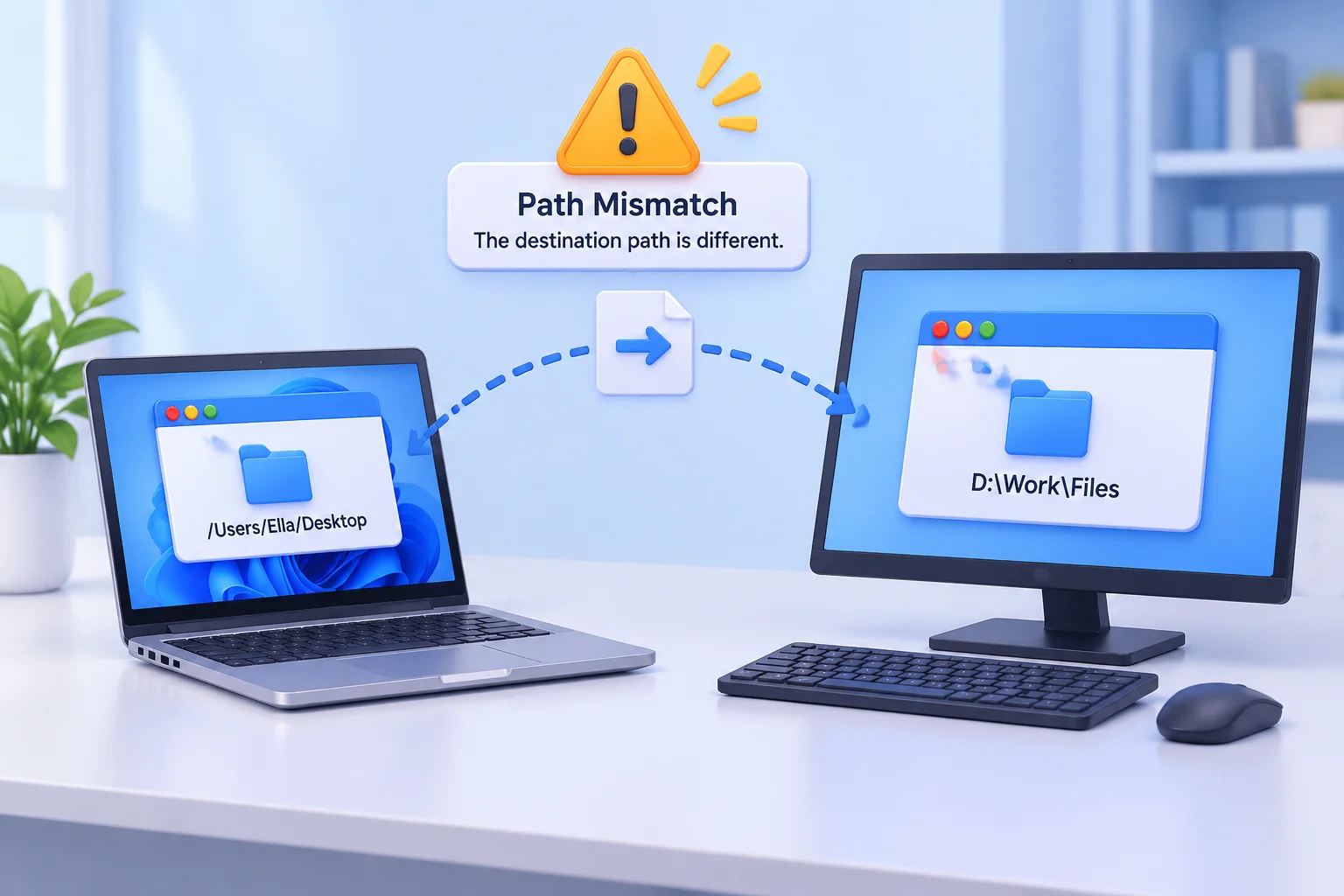
Windows assigns drive letters dynamically based on connected devices. Connecting a secondary USB drive can change your dedicated media drive from E: to F:. Presentation software relying on absolute paths searches for files on E:, fails to find them, and displays offline placeholders on stage screens.
macOS uses volume names mounted under /Volumes/. Mounting a drive with a slightly different volume name creates identical path mismatch issues. Relative paths bypass this issue by removing drive identifiers entirely from individual asset pointers.
Best Practices for Structuring Portable Project Folders
Maintain consistent asset organization across all workstations by adopting standardized folder structures. Follow these practical steps prior to transferring show files:
-
Create a Single Root Project Directory: Keep every presentation file, video clip, audio track, and graphic element inside one master folder for the event.
-
Subdivide Media Logically: Group assets into dedicated subfolders such as
/Videos,/Audio, and/Slidesto maintain readable project trees. -
Import Assets After Placement: Copy media into your project directory before dragging files into your presentation software. Importing files from downloads or desktop folders creates unintended absolute links.
-
Verify Path Settings: Check your show presentation software preferences to confirm relative path binding options remain active prior to deployment.