Why Workstation Transitions Often Break Media
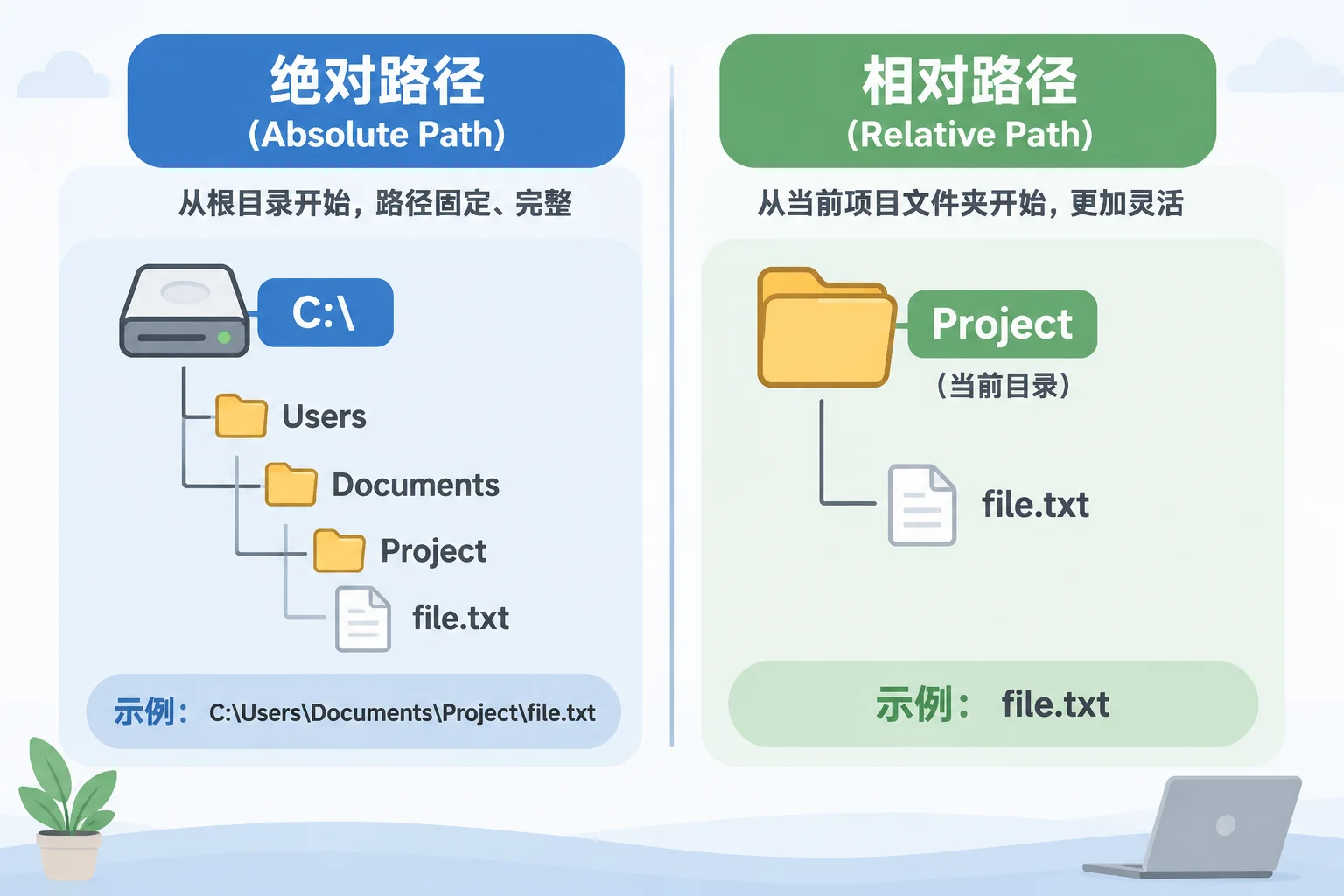
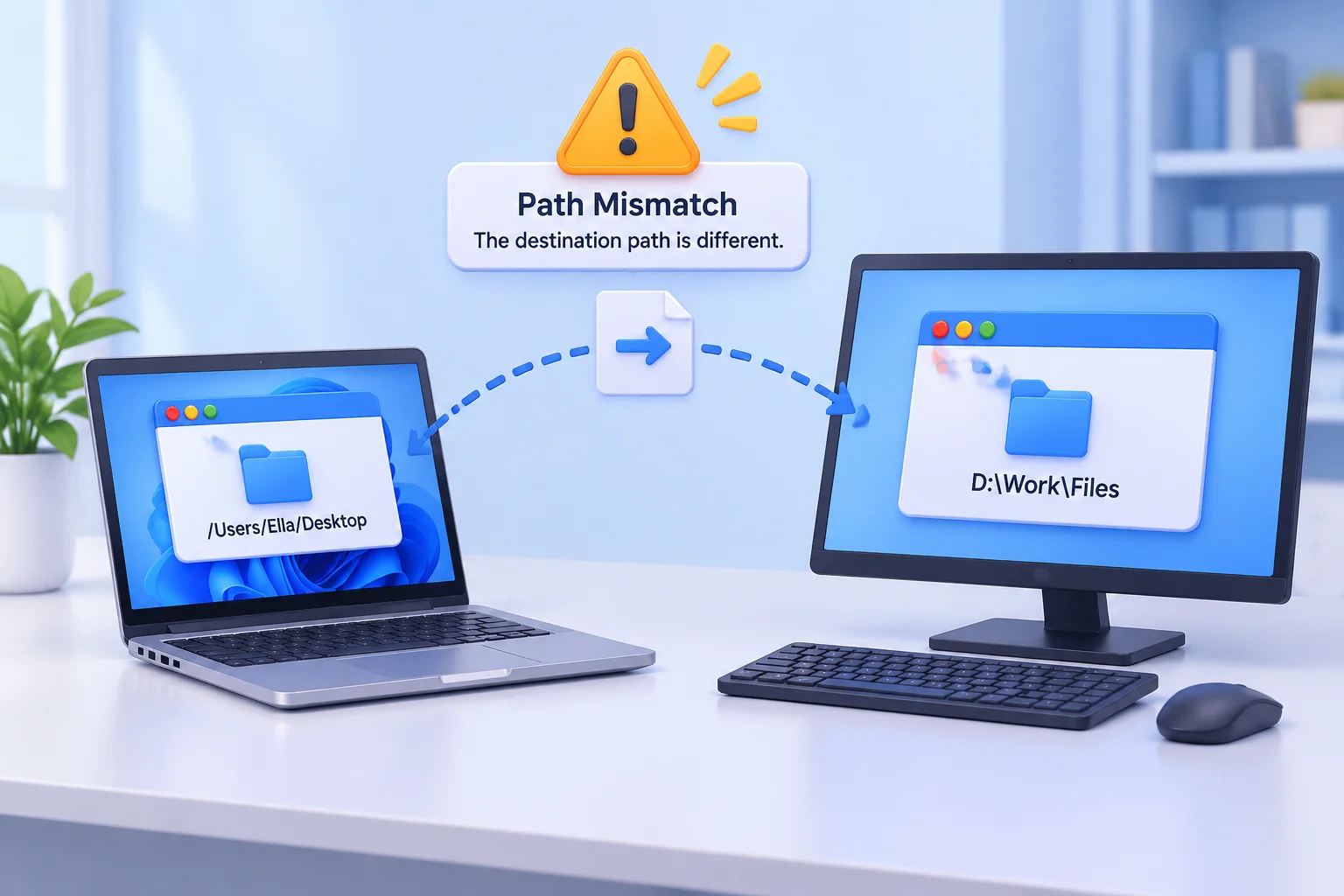
When you prepare a presentation on a primary machine and move it to a backup workstation, the underlying file paths are often the first point of failure. Modern software frequently saves the full file path—starting from the root drive—as a way to identify a source file. If your primary machine maps an external drive as 'D:\' but the secondary machine identifies it as 'E:\', the software will be unable to locate your media.
Standardizing Your Directory Structure
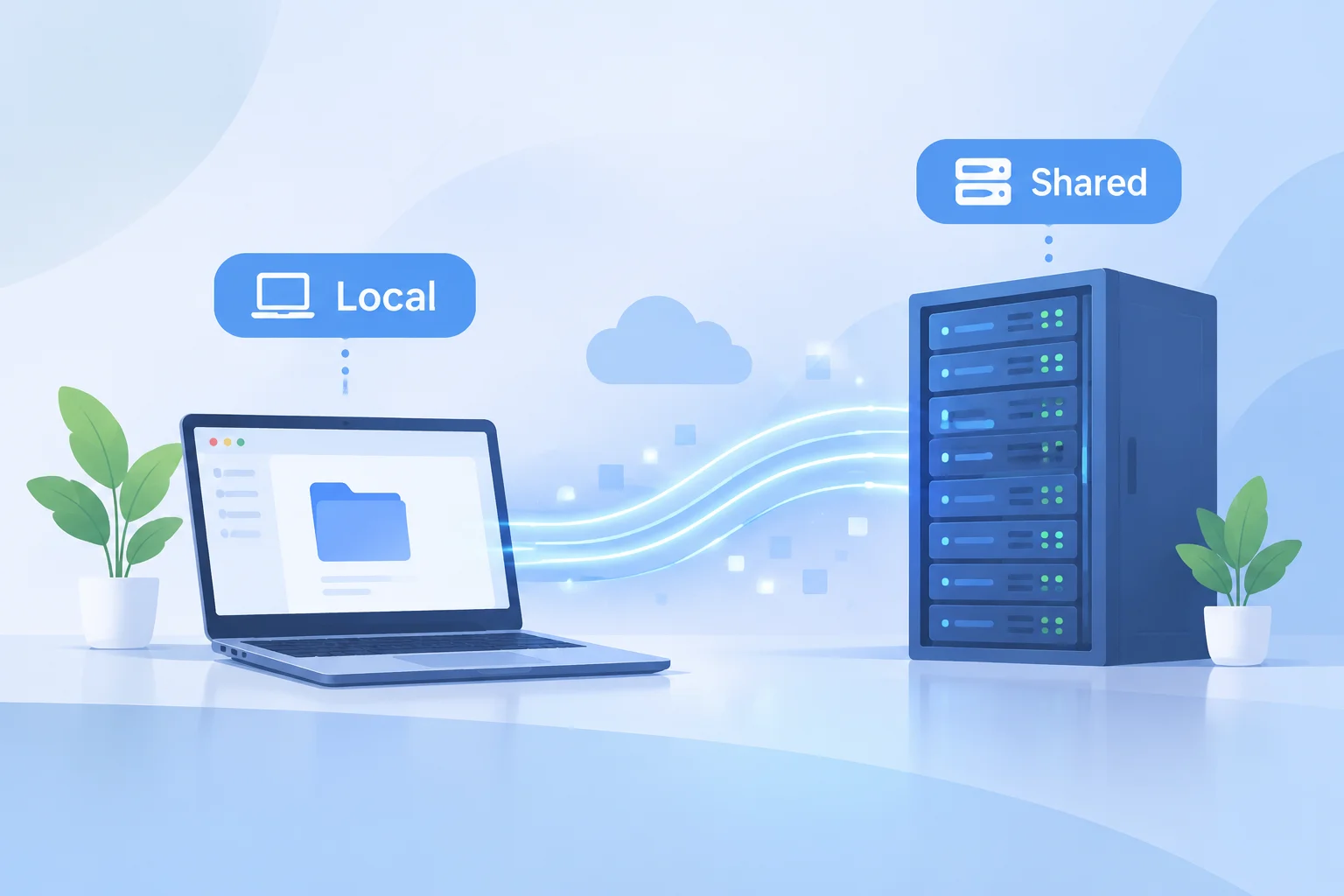
To avoid these issues, standardize the directory structure across all workstations in your facility. Create a parent folder that mirrors exactly what is on your production machine. If you must use external drives, use manual drive letter assignment in your operating system to force the backup machines to recognize the drive under the same letter. This simple step saves hours of troubleshooting during pre-show rehearsals.
The Importance of Relative Paths
Where software allows, use relative paths instead of absolute references. A relative path points to a file based on its location relative to the project file itself, rather than from the root of the hard drive. This makes your project portable, allowing you to move the entire project folder to any location or machine without breaking links.