Why Path Verification Matters
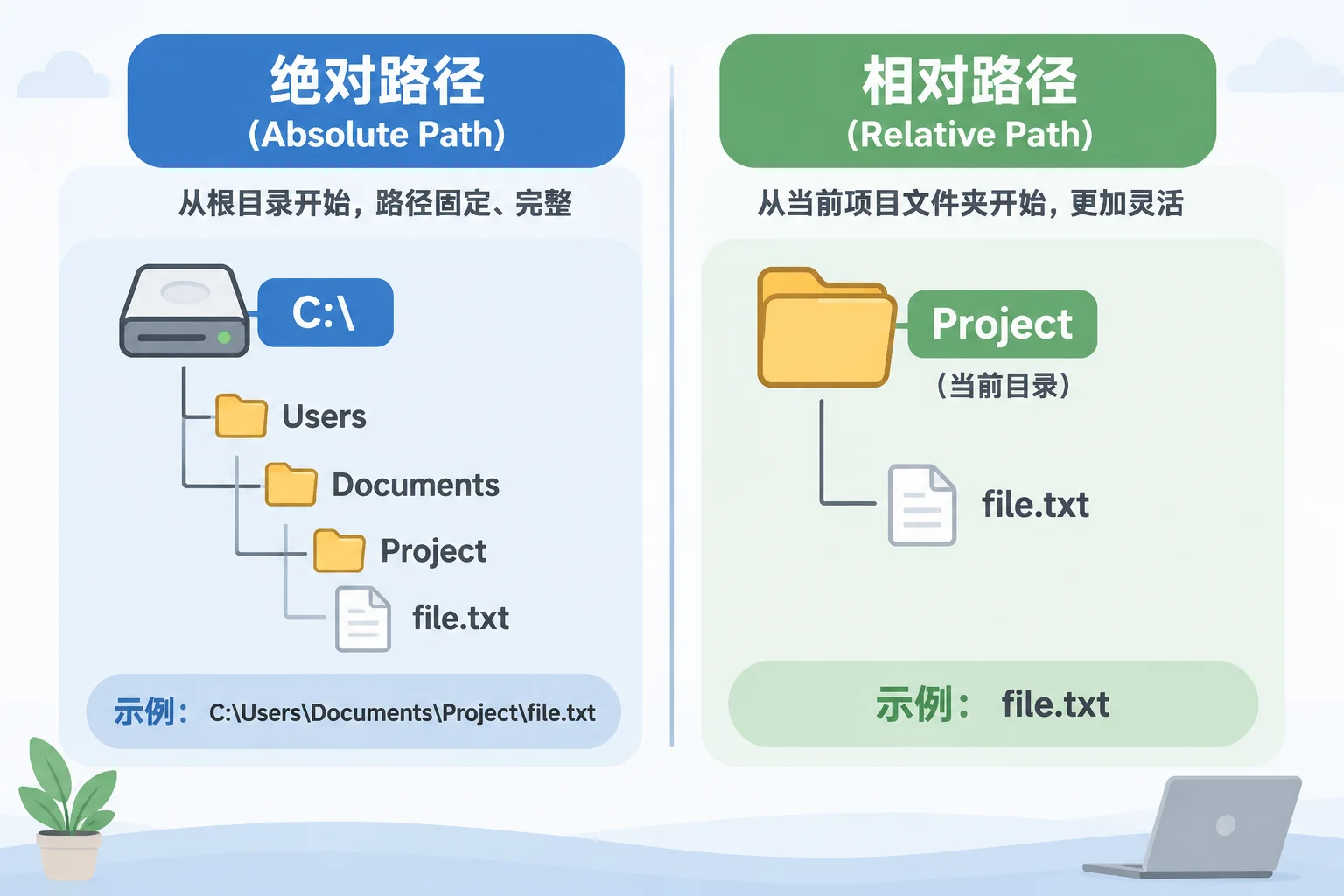
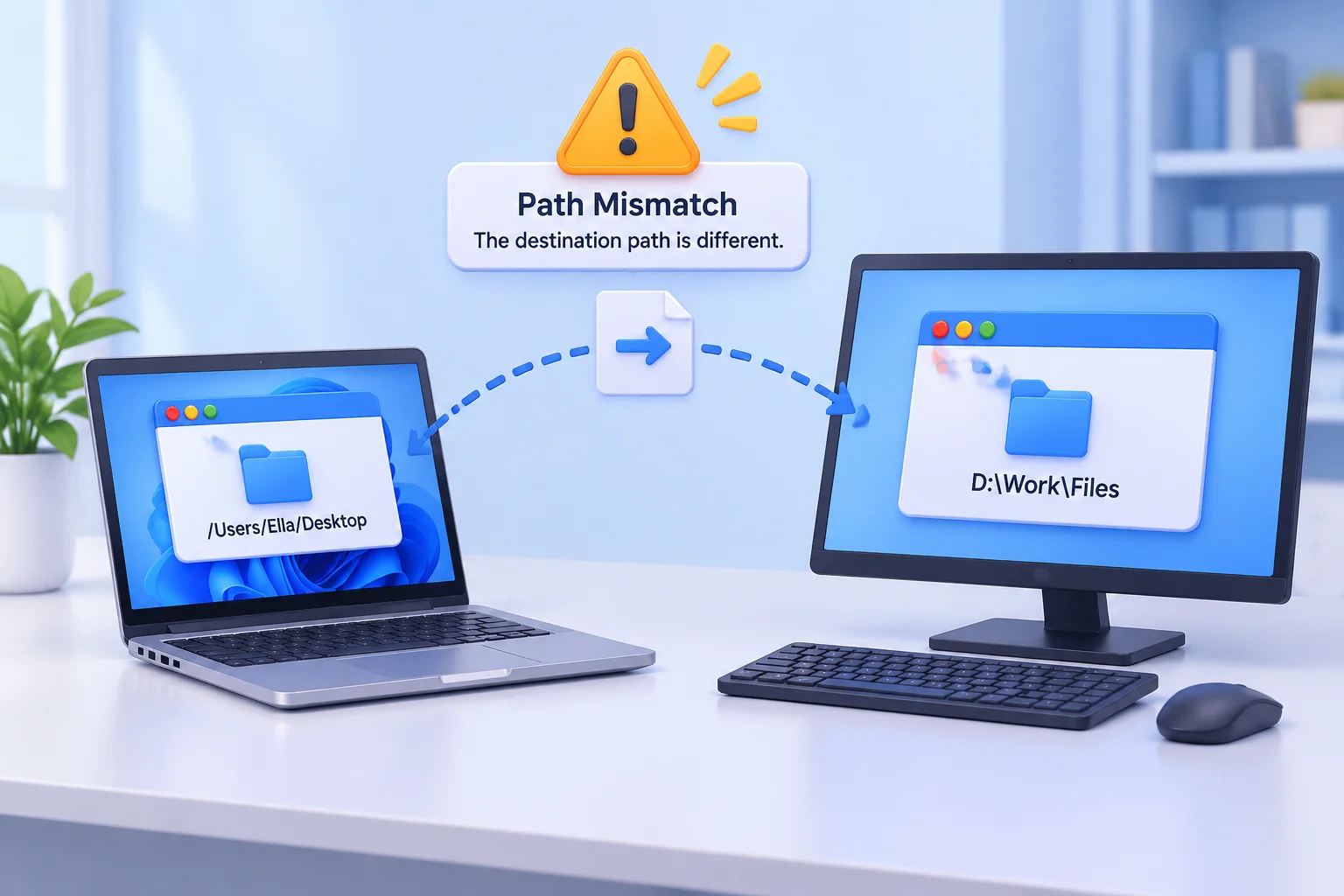
When you transfer a project folder from one workstation to another, the software relies on specific file paths to locate media. If these paths include hardcoded drive letters or absolute references (e.g., C:\Users\Name\Projects\), the target system will fail to locate the files, leading to 'missing media' warnings. By verifying these paths before you begin your move, you can ensure a seamless transition between workstations.
The Pre-Transfer Checklist
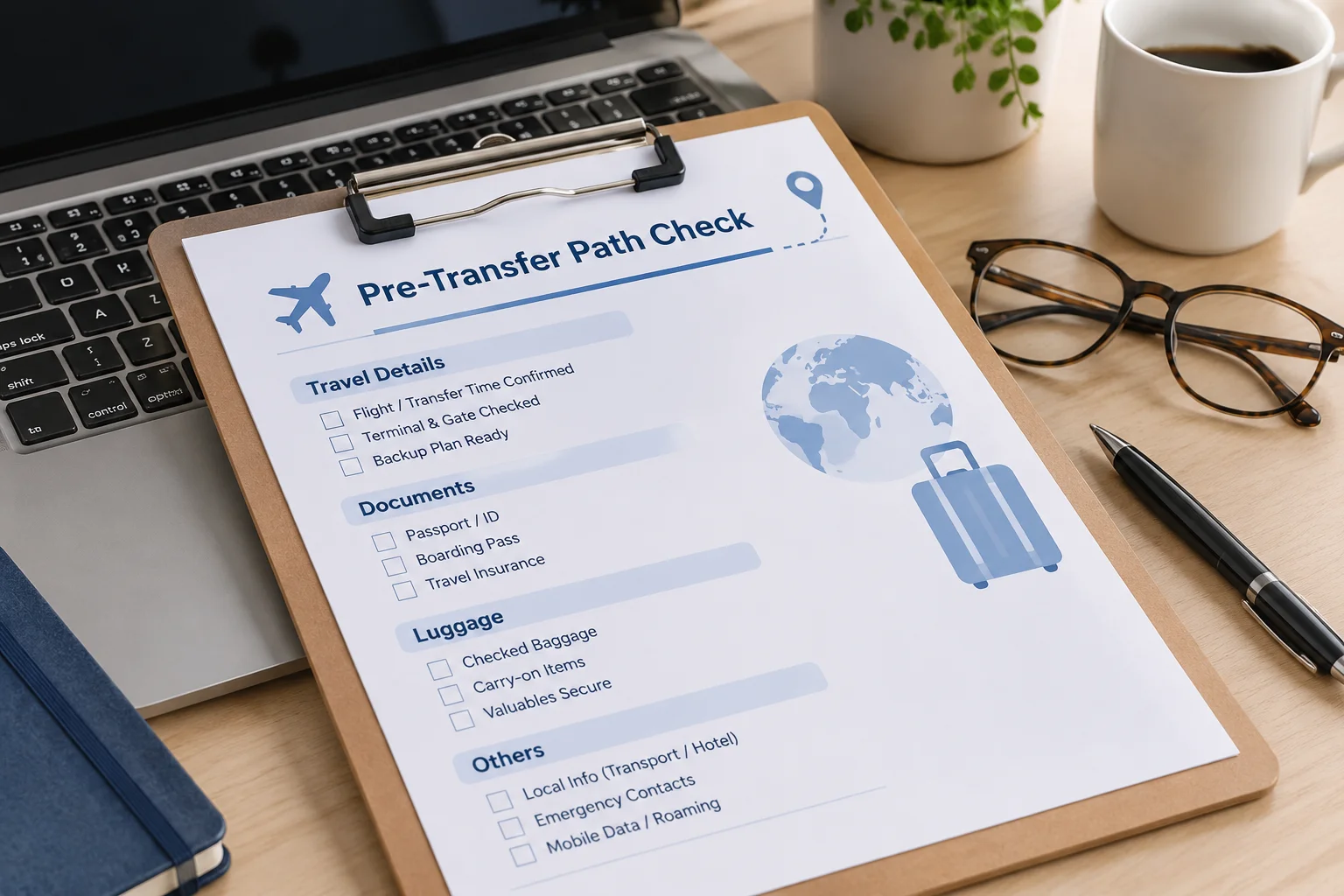
Before you commit to a file transfer, run through this simple audit to save yourself from potential downtime:
- Analyze Dependencies: Identify which files rely on external paths.
- Standardize Hierarchies: Ensure folders are placed within the same relative root directory on the new machine.
- Test on Target Hardware: If possible, move a small subset of the project first to verify path validity.
- Update References: Use your software's built-in file relinking tools to point to new directory locations if necessary.
By following these systematic steps, you maintain consistency in your media library and ensure your presentation assets remain ready for showtime.
Frequently Asked Questions
Should paths be checked after a project move?
Yes. A copied project can still reference the original drive. Inspect the stored path and test each required asset on the destination workstation.
What should I preserve before relinking files?
Keep a copy of the original project and record the previous source locations. Verify file identity before selecting a replacement.