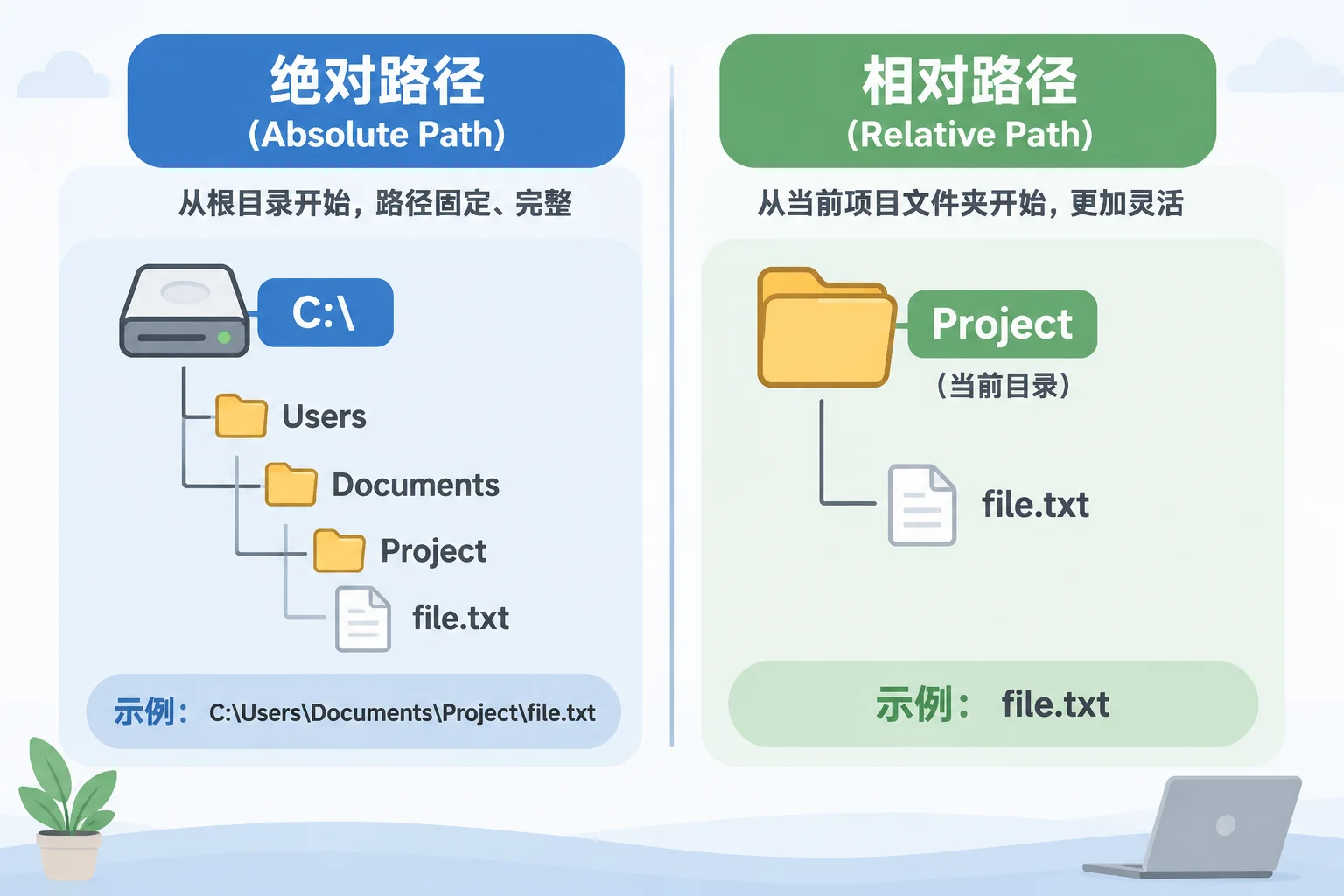
At its core, a file reference is simply a pointer—a set of instructions that tells your presentation software exactly where a specific media asset lives on your drive. When that pointer aligns perfectly with the actual location of the file, everything plays as expected. However, understanding exactly how your software interprets these strings is crucial, especially when moving projects between workstations.
The Anatomy of a Path
Most file references follow a hierarchical directory structure. In Windows, this starts with a root drive letter (like C: or D:), followed by folder names and the filename. In macOS, it begins with the volume name. When your application "reads" this reference, it attempts to traverse the path exactly as written. If a single folder has been renamed or moved, the software hits a dead end, triggering the all-too-common "Media Offline" warning.
Why Direct Interpretation Matters
Software applications vary in how they store these references. Some use absolute paths—rigid, specific routes from the root. Others prefer relative paths, which calculate the location of a file based on the position of your project folder. Knowing which method your system uses allows you to anticipate potential breakages. If you are using a shared network drive, this reading process becomes even more sensitive, as the drive letter mapping must be identical on every single computer accessing the media.
Best Practices for Verification
Do not wait for a show to discover an invalid path. Regularly open your media bin, inspect the file metadata, and confirm the source location. If you frequently move assets between machines, consider a centralized folder structure where the relative path remains consistent, regardless of which workstation you are using. This proactive approach ensures that your software always finds the files it needs without manual intervention.