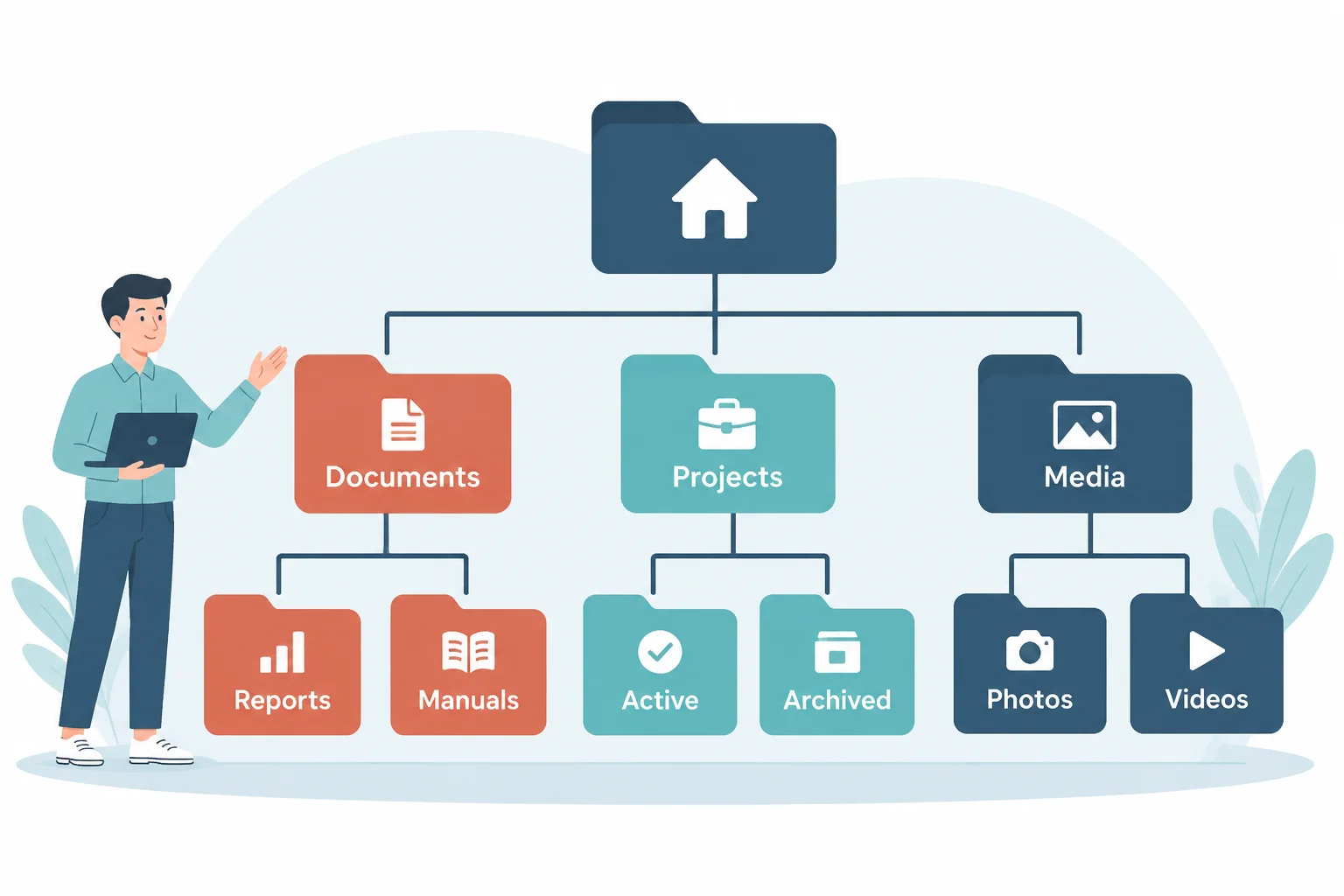
A structured folder hierarchy keeps media projects self-contained, ensuring every referenced video clip, audio bed, still graphic, and document remains reachable regardless of which machine opens the project bundle. When assets scatter across arbitrary desktop folders, temporary download caches, or unmanaged removable drives, playback software loses absolute file references the moment a drive letter changes or a user account switches.
Why Directory Hierarchy Matters for Media Engines
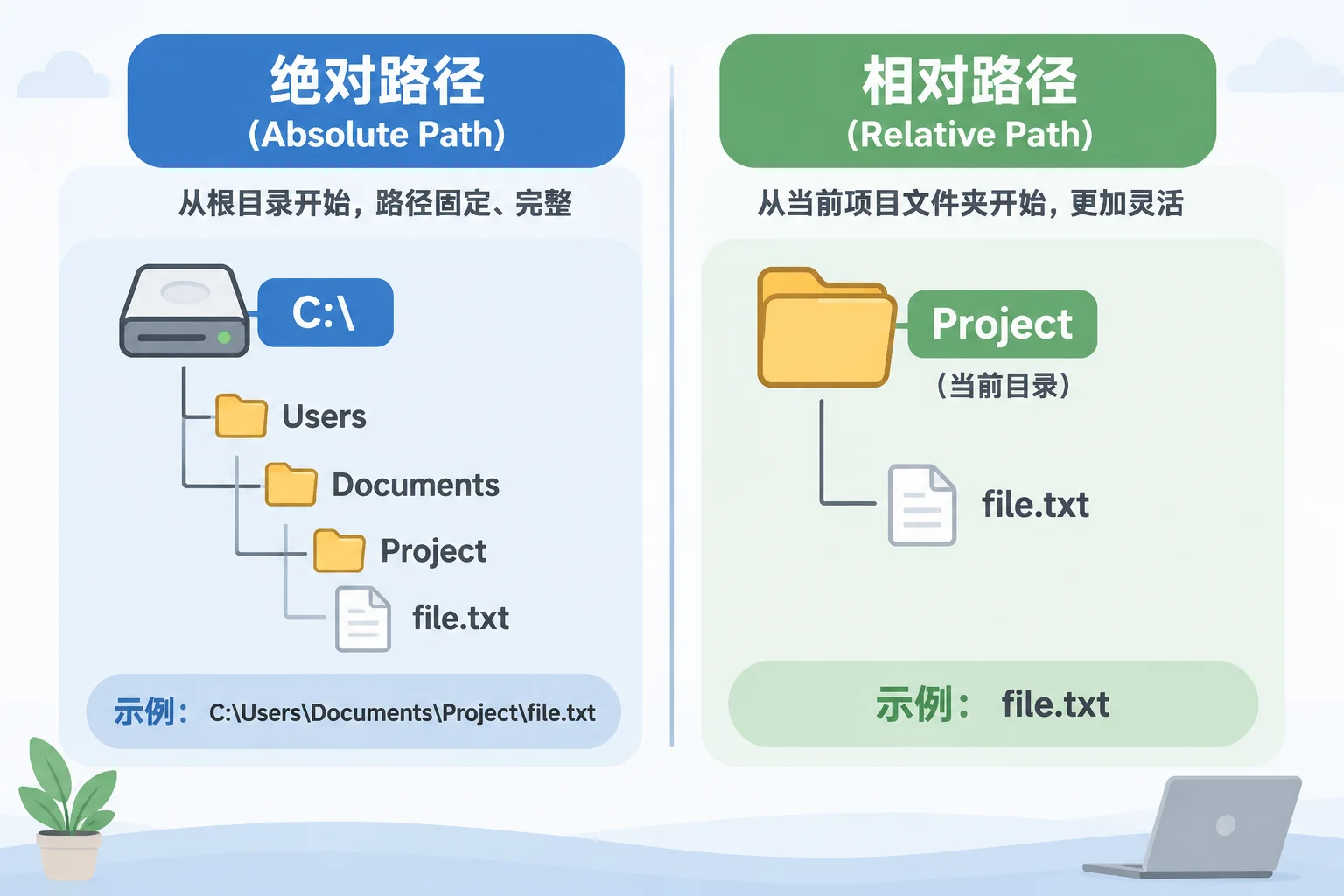
Presentation engines and digital asset managers resolve links in two primary ways: absolute file paths and relative project paths. Absolute paths pinpoint exact locations from the drive root down to the file name. As soon as a presentation project migrates from a production workstation to an event control station, differences in volume labels, user home directory names, or drive letters immediately sever absolute connections.
In contrast, relative referencing preserves internal branch relationships. If the main project bundle and its companion media folders reside inside one parent root directory, the presentation engine calculates file locations based on their distance from the project file itself. Maintaining a predictable, uniform tree prevents missing media errors during live productions.
Core Principles of a Resilient File Hierarchy
Establishing clean conventions eliminates guesswork for operators and technicians under tight rehearsal deadlines. Effective production environments follow four foundational rules:
- Single Parent Enclosure: Store every asset, presentation document, and playlist variant under one master project folder. Moving or backing up that single root preserves all internal link relations intact.
- Strict Depth Limits: Limit folder hierarchies to three or four levels below root. Deeply nested paths frequently trigger system-level string length cutoffs on certain operating systems and make quick directory navigation cumbersome.
- Functional Asset Separation: Divide assets by media format and operational role rather than delivery date. Dedicated folders for video rolls, stage graphics, walk-in audio, and presenter slides prevent accidental file overwrites.
- Consistent Standardized Naming: Avoid spaces, accents, special punctuation, and case-sensitive overlaps. Consistent lowercase or snake_case conventions ensure identical path resolution between macOS workstations and Windows control rigs.
A Recommended Production Directory Blueprint
Standardizing directory structure across team members turns asset handoff into a seamless, automated process. A proven tree format looks like this:
├── 01_Project_Files/ (Presentation bundles, cue sheets, run-of-show files)
├── 02_Video_Assets/ (Intro bumpers, speaker countdowns, pre-recorded segments)
├── 03_Graphic_Assets/ (Lower thirds, holding slides, transparent overlays)
├── 04_Audio_Stems/ (Walk-in music, stings, voiceover tracks)
└── 05_Archive_Unused/ (Superseded files and alternative cuts kept out of production bins)
This layout creates a clean boundary between final show elements and unverified draft material. When an emergency update arrives 10 minutes before curtain, technicians know exactly where to place the file and which folder to avoid.
Handling Shared Storage and Workstation Transfers
Operating across shared network storage introduces path variance whenever drives mount under distinct system paths. A shared volume mounted at Z:\ on a technician console might mount under /Volumes/ProductionNAS on an editor laptop. When project files rely on internal relative paths, software reconstructs missing media automatically as long as the relative distance inside the project boundary remains unchanged.
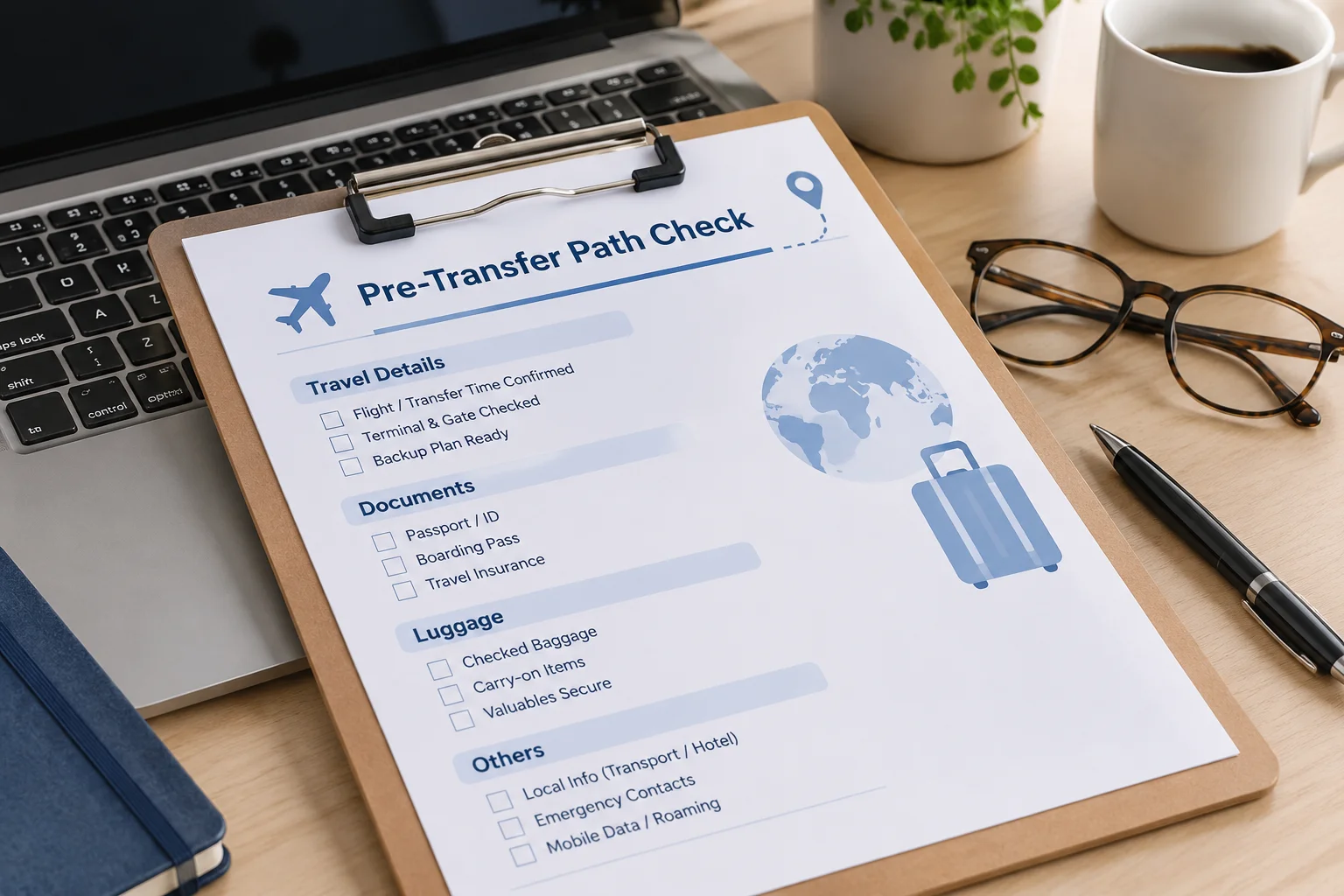
Before packing a directory for thumb drive deployment or remote transfer, perform a pre-flight sweep. Verify that no asset in the playlist points to an external user desktop, temporary browser download path, or disconnected peripheral drive. Locking your folder hierarchy well ahead of showtime is the single most effective defense against black screens and missing asset alerts.