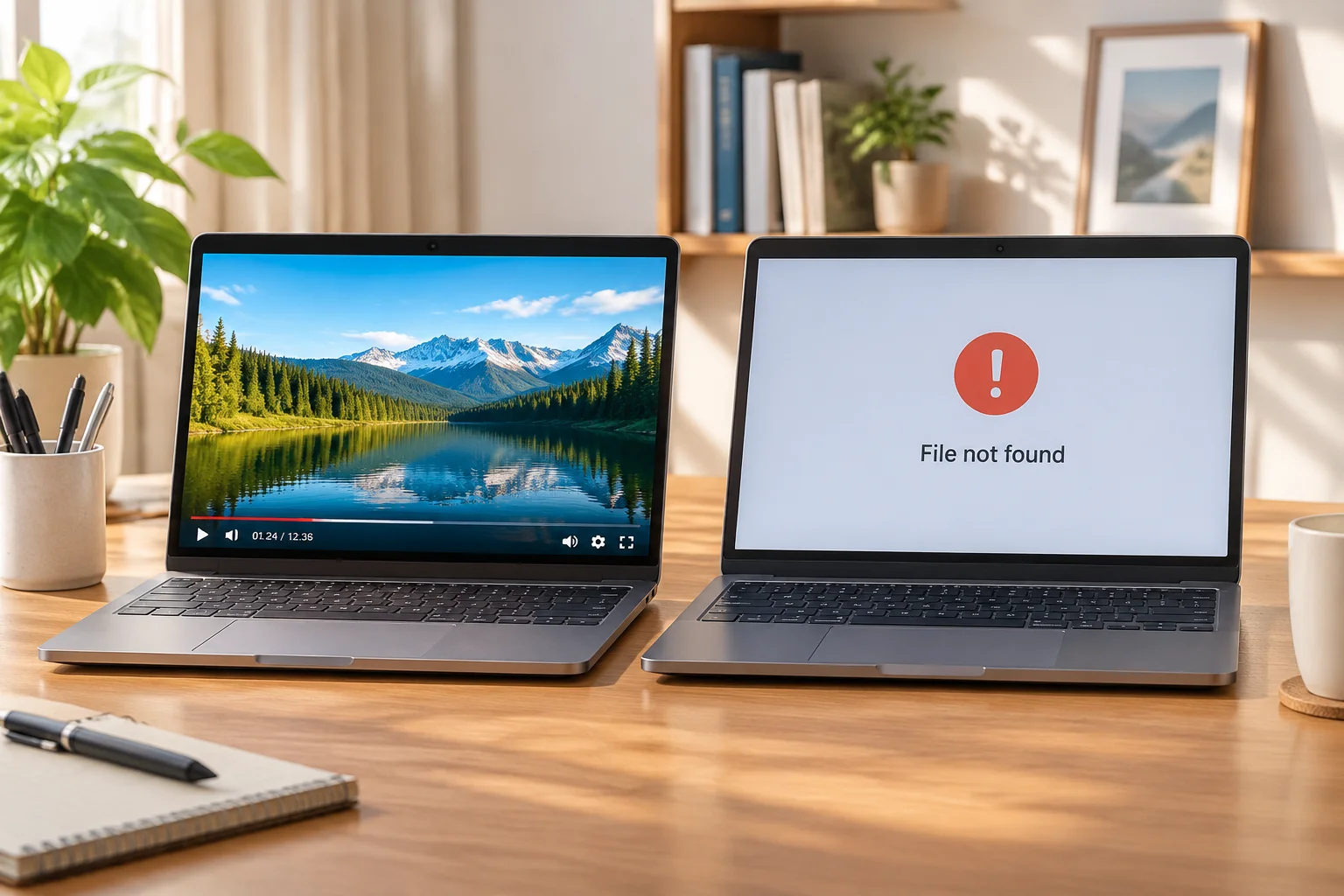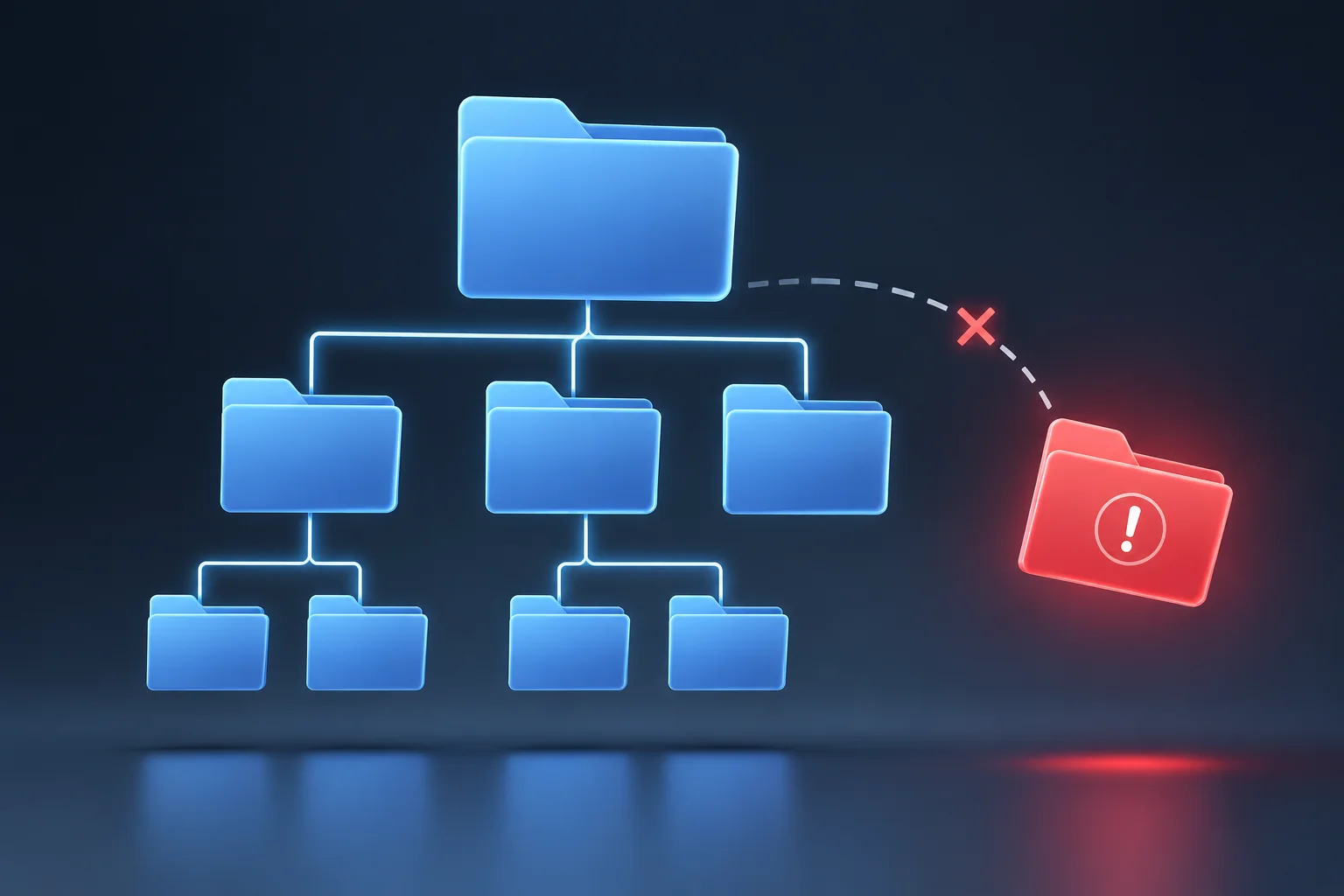
Incident Context: The Post-Move Disruption
Organizing production assets is standard practice during multi-day events. However, moving a parent directory—such as changing /Desktop/Unsorted_Videos/ to /Documents/Client_Assets/2026_Event/—instantly breaks internal pointer links if presentation decks rely on hardcoded absolute file paths. This scenario examines an incident where an entire slide deck presented grey placeholders minutes before executive rehearsals.
Why File Paths Break When Folders Are Relocated
Presentation applications frequently index external video loops, high-resolution graphics, and audio stems by saving exact disk locations rather than embedding large binary media into project files. When a user moves a folder containing these assets, the absolute path pointer points to a directory structure that no longer exists at the operating system level.
Absolute Path vs Relative Path Behavior
An absolute path expects exact folder chains (e.g., C:\Users\Operator\Videos\Intro.mp4). If Videos moves inside Archive, the software returns a media offline state because it lacks automated recursive directory searching.
Diagnostic Step-by-Step for Technical Teams
Follow this structured checklist to identify and repair broken file references rapidly under time constraints:
- Identify Missing References: Open the presentation inspector or media manager panel to list missing files marked with warning icons.
- Trace Original Path Strings: Inspect the property details of an unlinked clip to verify the old directory name and drive partition.
- Locate the Moved Directory: Confirm the target folder's new location on local storage or external media arrays.
- Execute Relink Command: Use the application's batch search function or point the root lookup path to the new directory.
- Verify Playout & Save: Test playback on all screens and re-save the deck to record updated file references.
Best Practices for Folder Organization
To prevent asset path failures in high-pressure event production setups, maintain strict storage guidelines across all media playback workstations:
- Construct self-contained project folders where slide decks and media files reside in identical relative sub-directories.
- Never rename or move root folders once media import and slide layout work has commenced.
- Utilize consolidated package exports (e.g., "Bundle Project" or "Archive Show") prior to moving decks between workstations.
- Perform a pre-flight media audit on the master operator machine before live rehearsals begin.