Maintaining Link Integrity During Migration
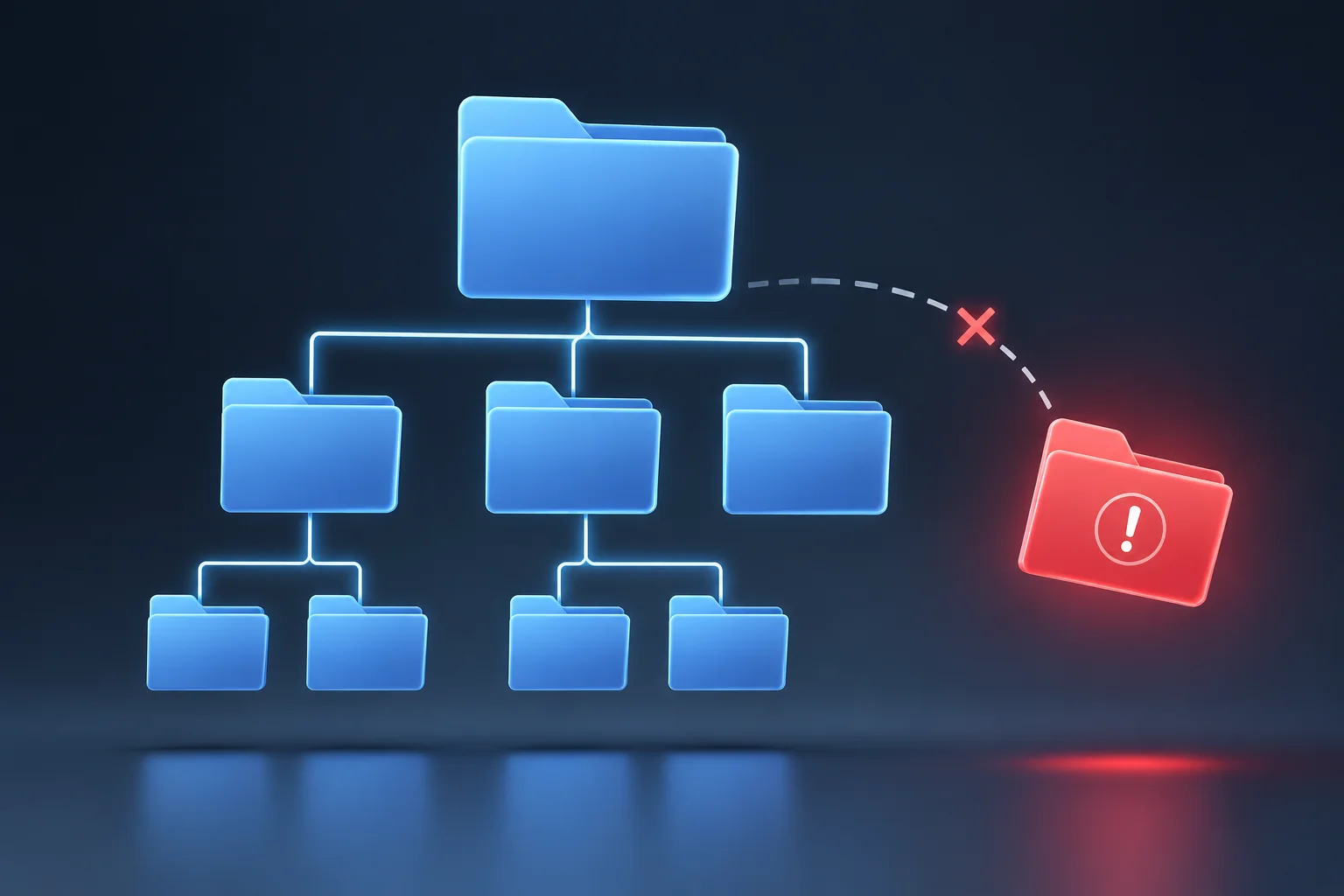
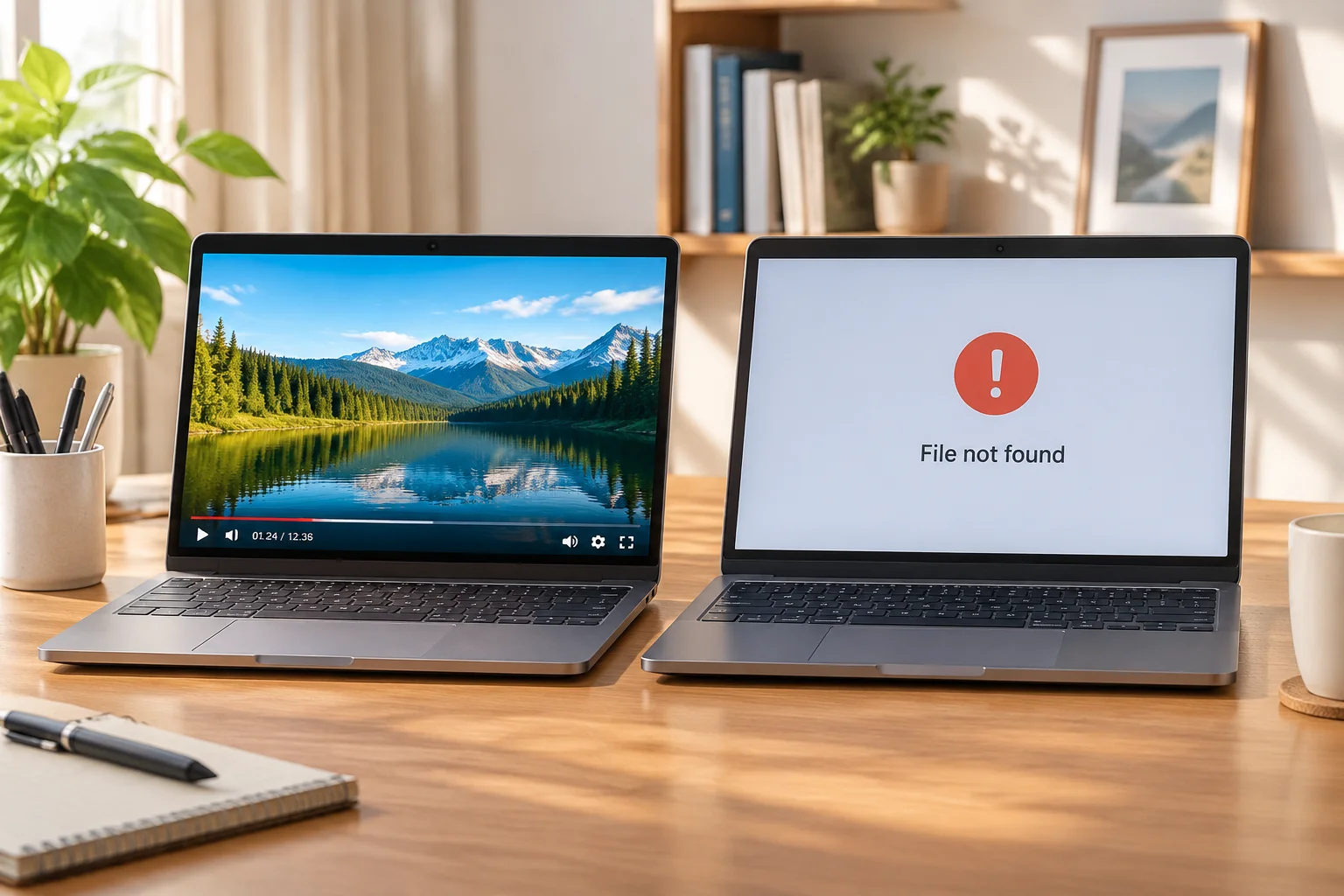
When moving media assets from one station to another, the most significant risk is broken file references. Because presentation software often relies on absolute file paths, shifting files to a drive with a different letter or a folder structure that differs slightly can lead to missing backgrounds, videos, or presentation elements. To minimize these risks, prioritize using relative paths whenever your software supports them.
Preparation Before Transfer
Before initiating a transfer, audit your current library. Verify that all referenced files are contained within a single root folder. This containment makes the library portable and easier to move as a single block. If your media is scattered across multiple locations, move it into a unified directory structure before attempting to copy it to a new workstation.
The Transfer Process
Use high-speed external storage for the physical transfer. Once connected to the new workstation, do not open the presentation immediately. Instead, first map the external storage as a drive letter that matches the source, or if necessary, utilize the media management tools within your software to re-point the library to the new root location. Testing these links before the rehearsal prevents the panic of finding missing assets minutes before the show begins.