Identifying Media Mismatches
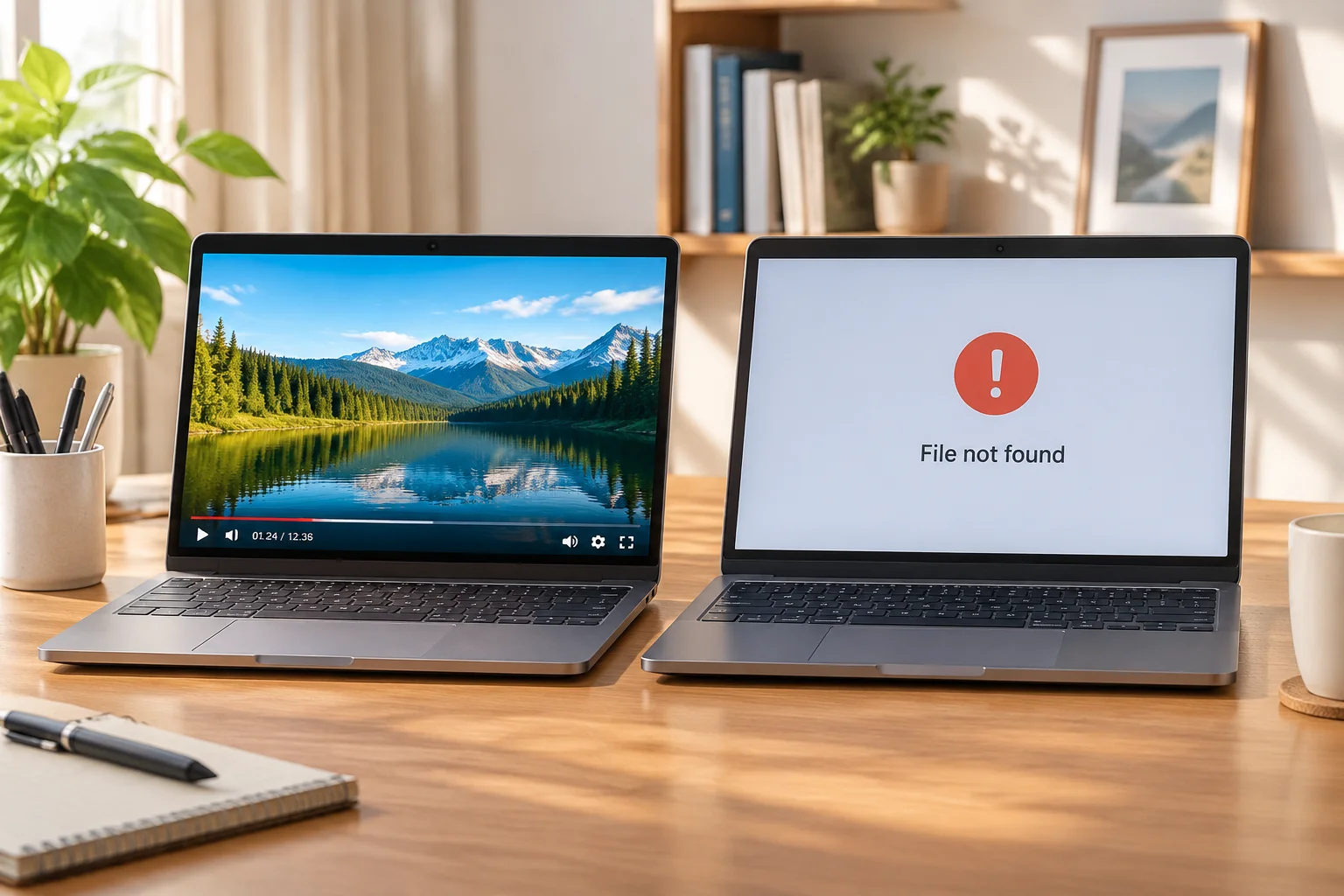
Before your rehearsal begins, perform a quick sweep of your media bin. If a video is marked as missing or offline, you are likely looking at a broken path link. Acting early saves precious time when the pressure of live production mounts. Simply right-clicking the missing asset often reveals the original path, allowing you to quickly locate and relink the correct file.
The Replacement Workflow
When the original file is truly gone or requires an update, follow these steps to maintain show integrity:
- Verify File Specifications: Ensure the new video matches the codec, resolution, and frame rate of the original to avoid playback stutters.
- Naming Conventions: Maintain the existing filename structure if possible, as some software relies heavily on file metadata.
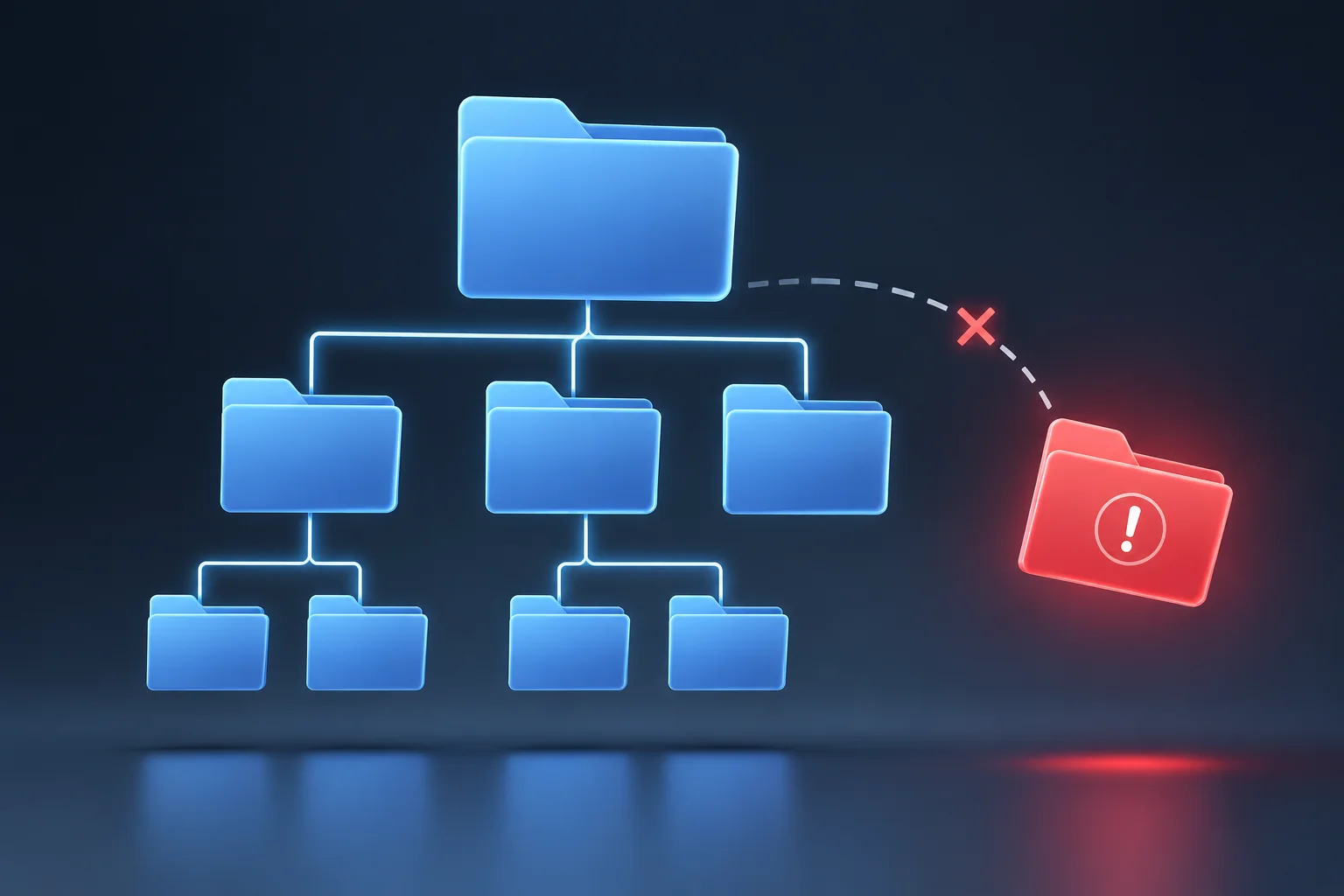
- Folder Placement: Keep assets in the established project structure to prevent future link breaks during final transfers to control room workstations.
- Relink in Software: Use the native software 'relink' or 'find missing file' feature to map the asset to its new physical location.
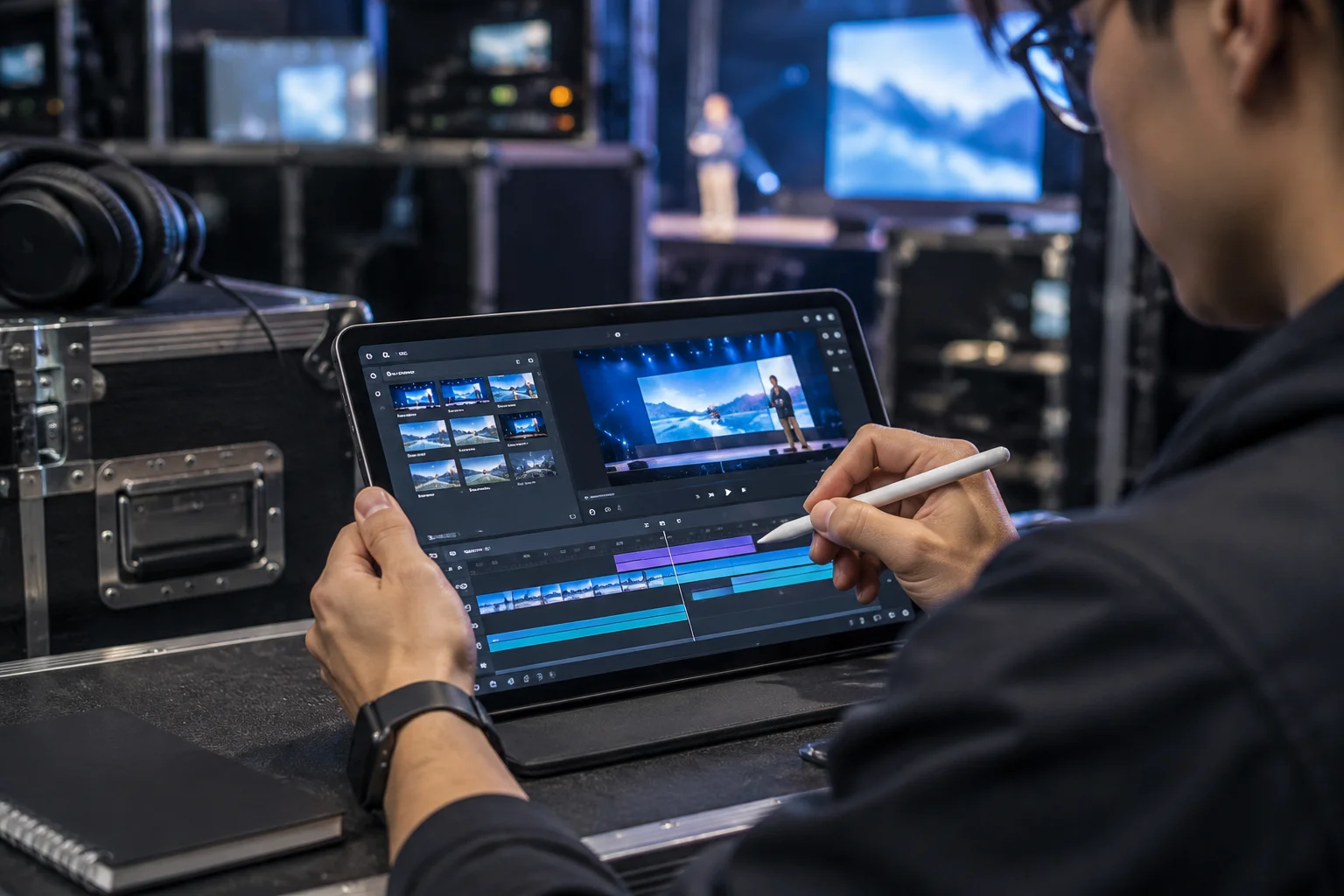
Always verify the video playback on the primary console immediately after replacement. If the software does not automatically update, you may need to force a cache clear to ensure the old version of the file does not linger in memory.
Frequently Asked Questions
What should be documented during a media review?
Record the asset version, source path, workstation, reviewer, test result, and any unresolved issue.
Does a successful import guarantee a successful live cue?
No. Confirm source access and test the asset in context on the actual show computer before marking it ready.